
Add Site
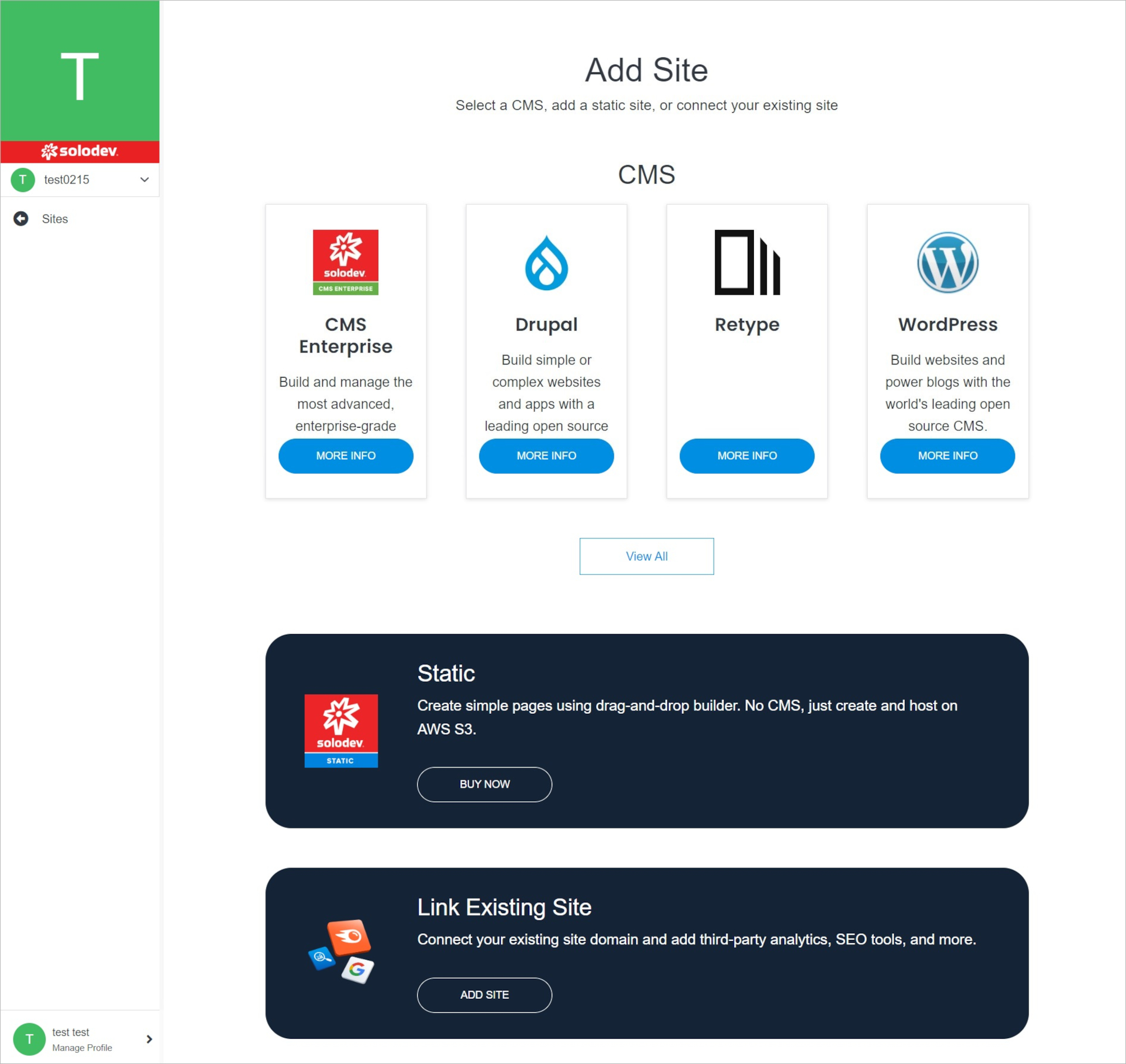
Adding a site is a simple process and can be completed in minutes by following the steps below.
Note:
Site Types:
CMS: CMS (Content Management System) creates pages, build websites, publishes content dynamically, and utilizes data modules to streamline content operations. With a CMS, manage users and groups with permissions on a site or even a page level, allowing for control and collaboration with the team on digital experiences. There are several CMS options to choose from in Solodev Cloud, including Solodev CMS and WordPress.
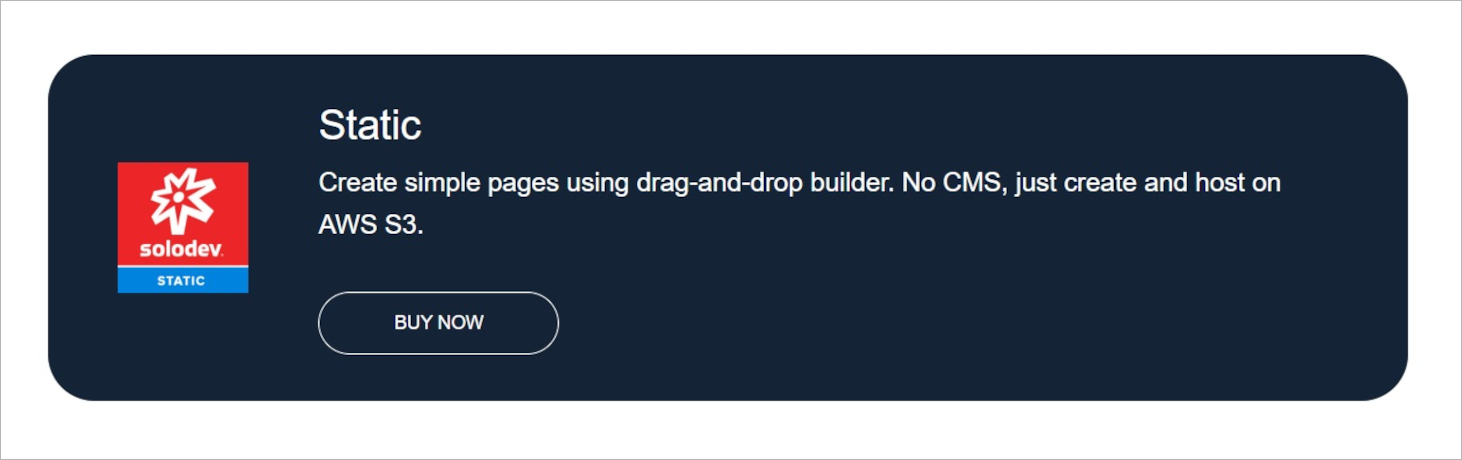
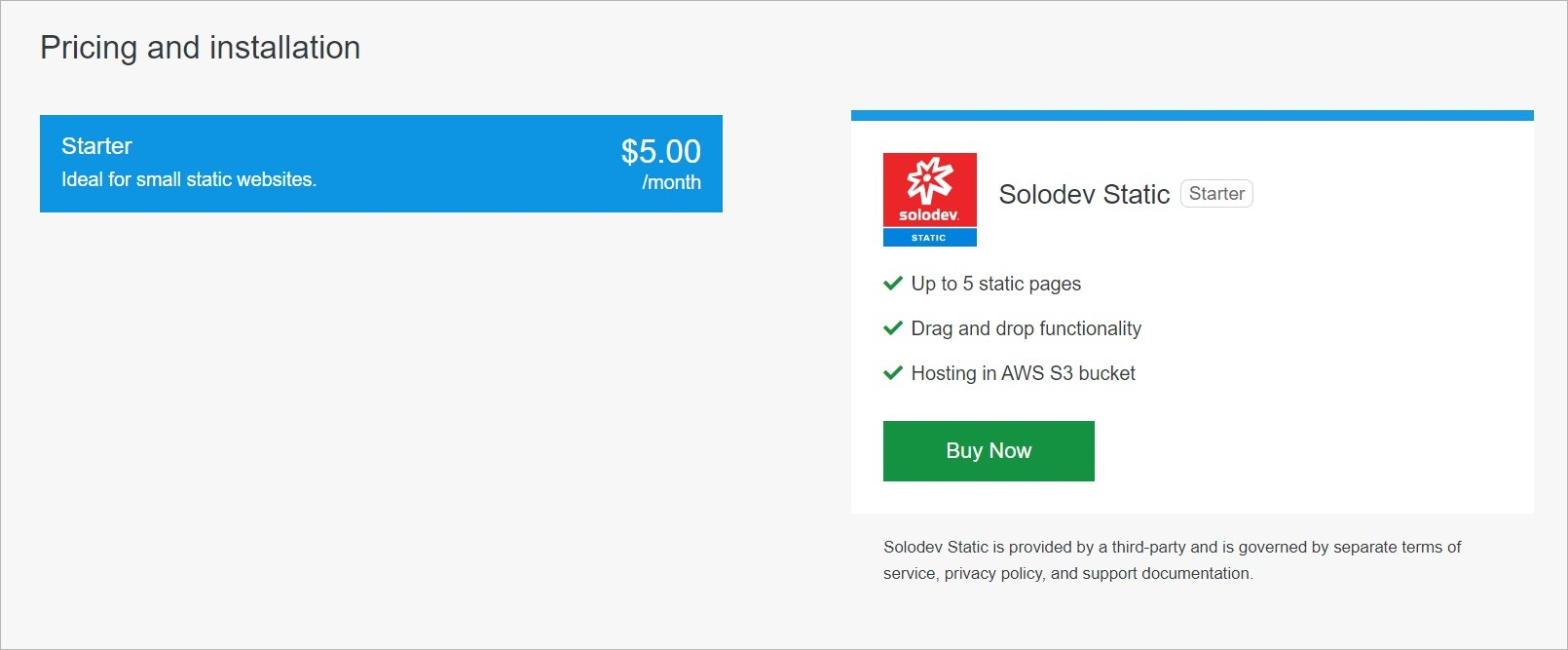
Static: A static website uses server-side rendering to push pre-built HTML, CSS, and JavaScript files to a web browser. Static sites decouple the content repository from the front-end interface, giving greater flexibility with minimal cost to host and maintain. Sites launched with Solodev Static can be built and managed using our simple drag-and-drop editor.
External: In addition to launching a CMS or a static site via Solodev Cloud, there is an option to connect an external site and manage the name, domain, login, and other variables within the Solodev Cloud account.
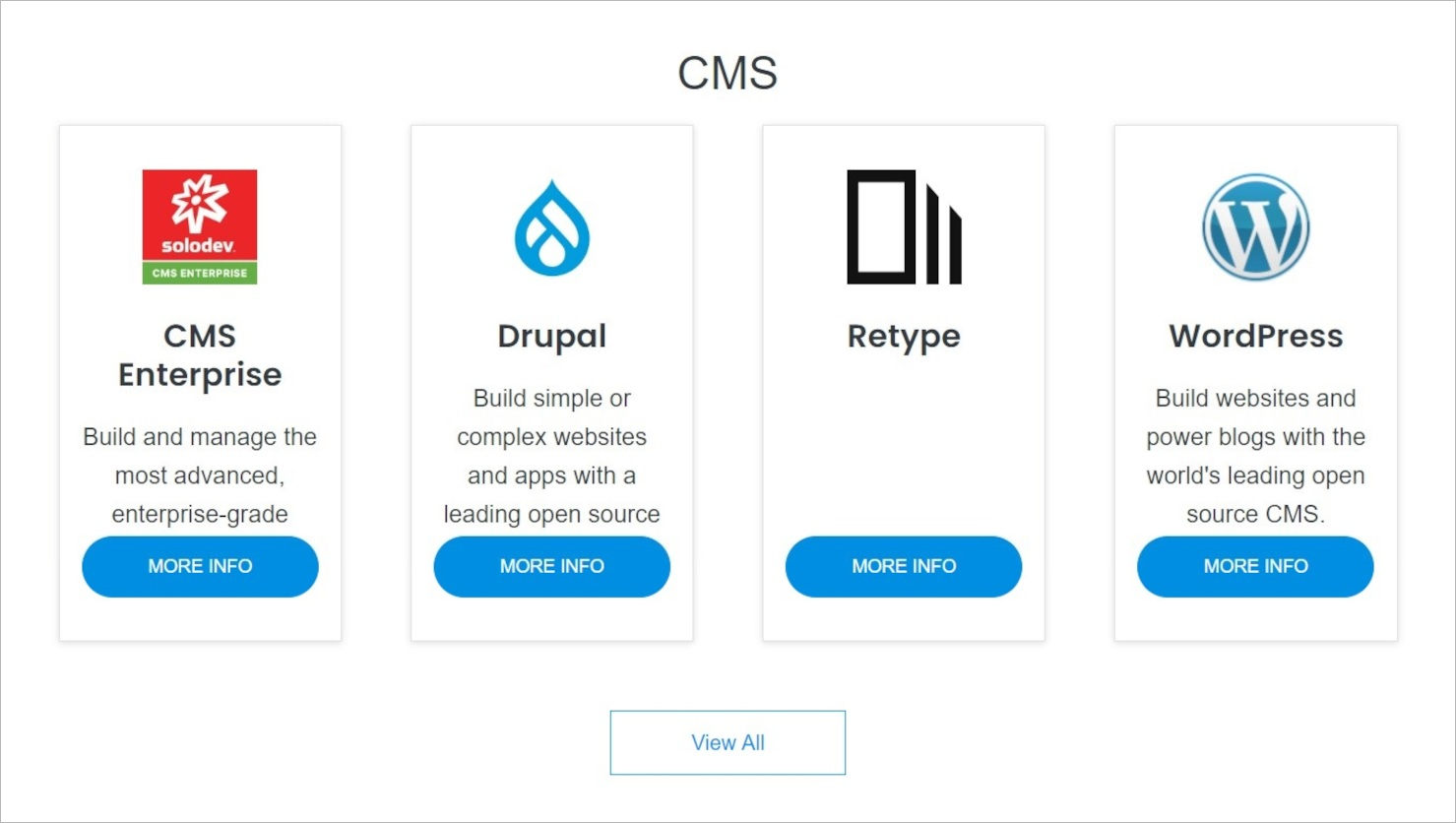
CMS
Create your site using CMS.
Note:
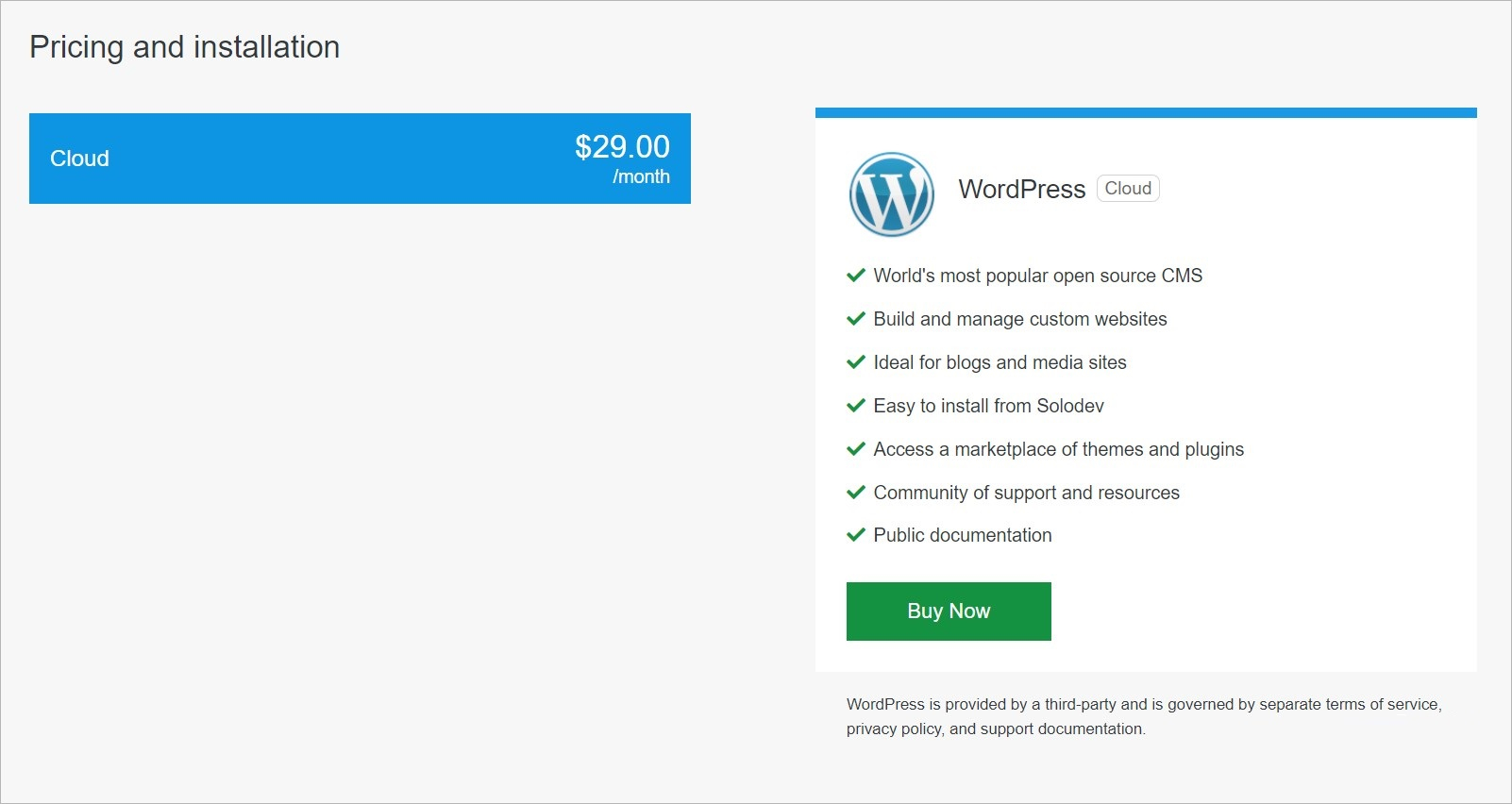
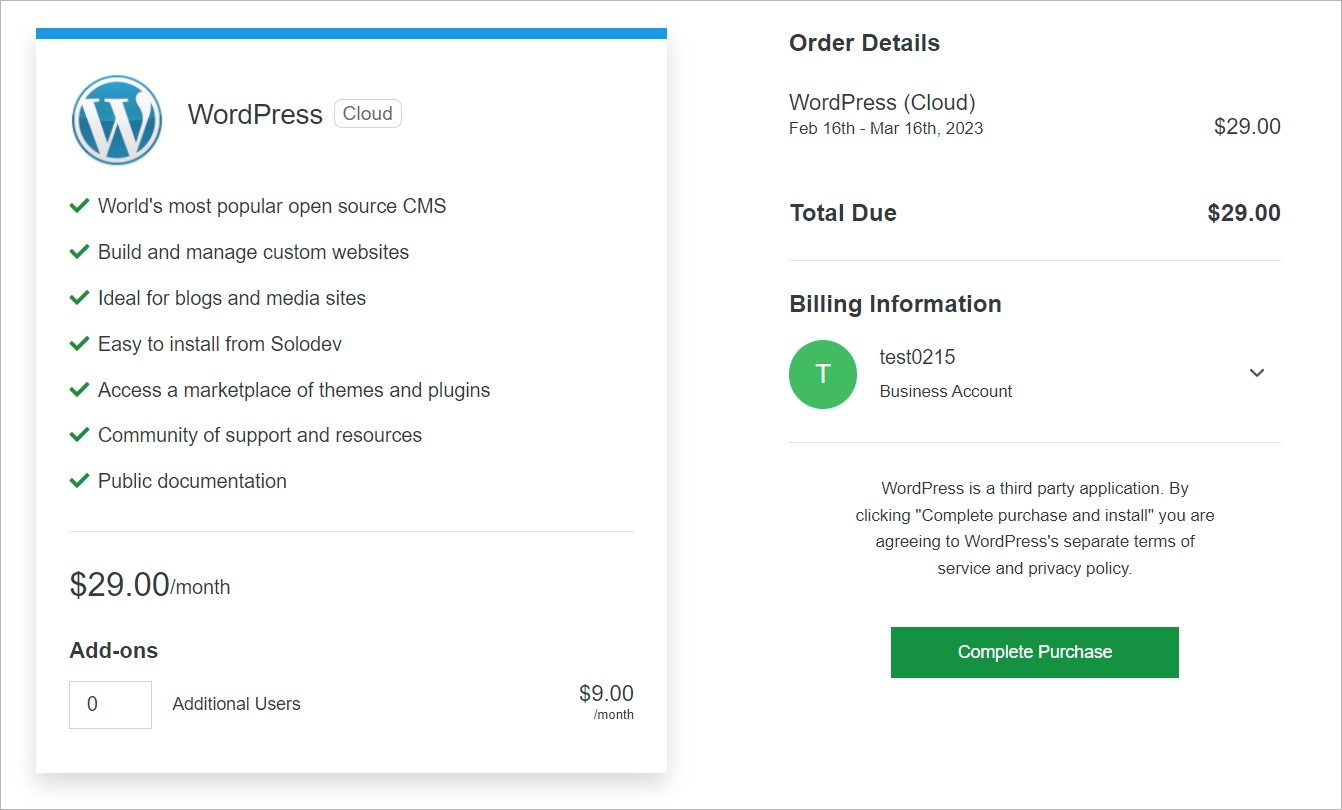
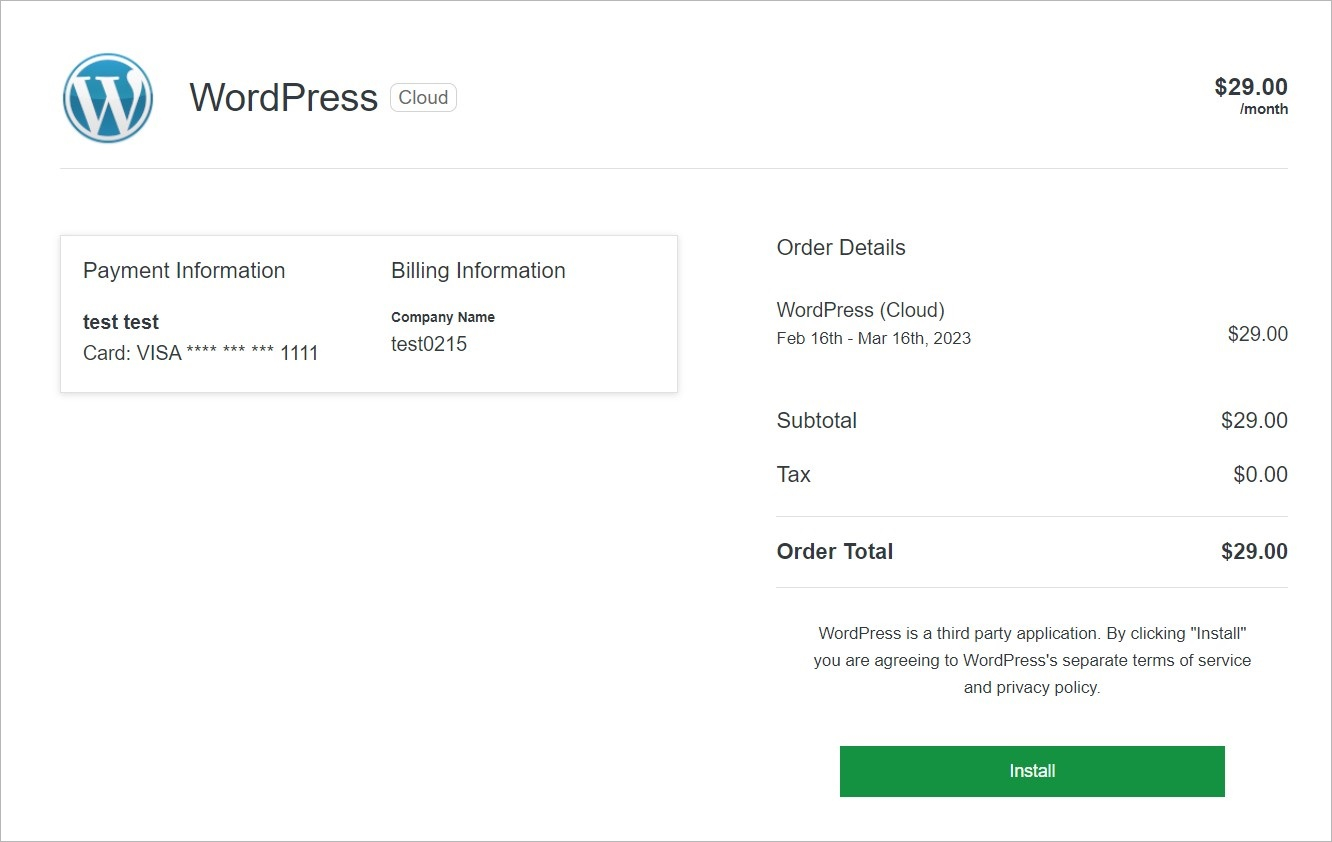
Some products have a purchase option. For others without a purchase option, contact Solodev by filling out the contact form. Below is an example of a product WordPress that can be purchased immediately without having to contact Solodev.
Tip:
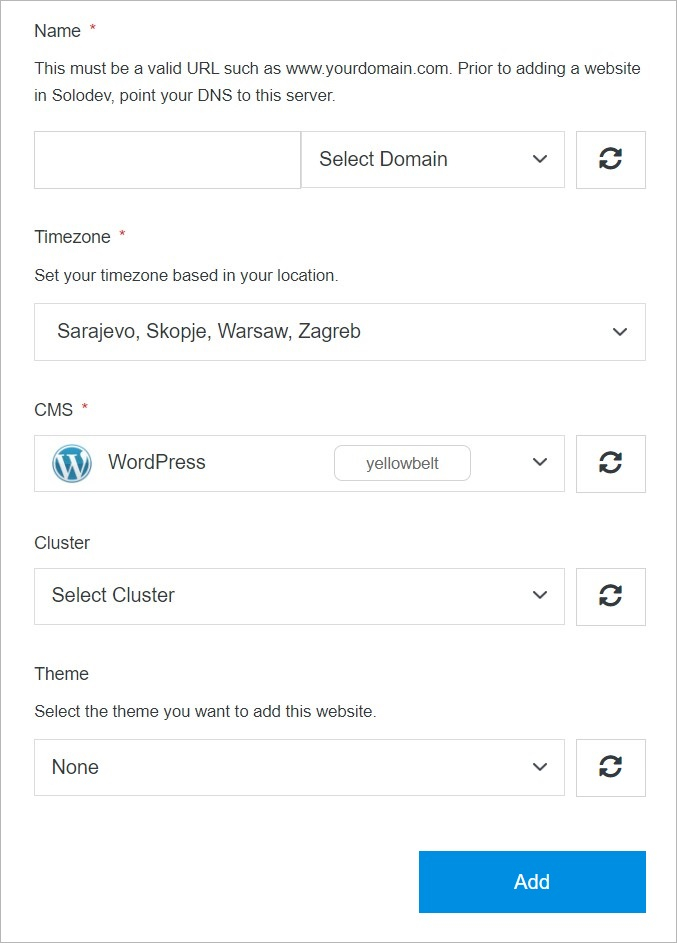
When adding a new domain, it must be a valid URL such as www.yourdomain.com. Before adding a website in Solodev, point your DNS to this server.
Static
Create your site using Static.
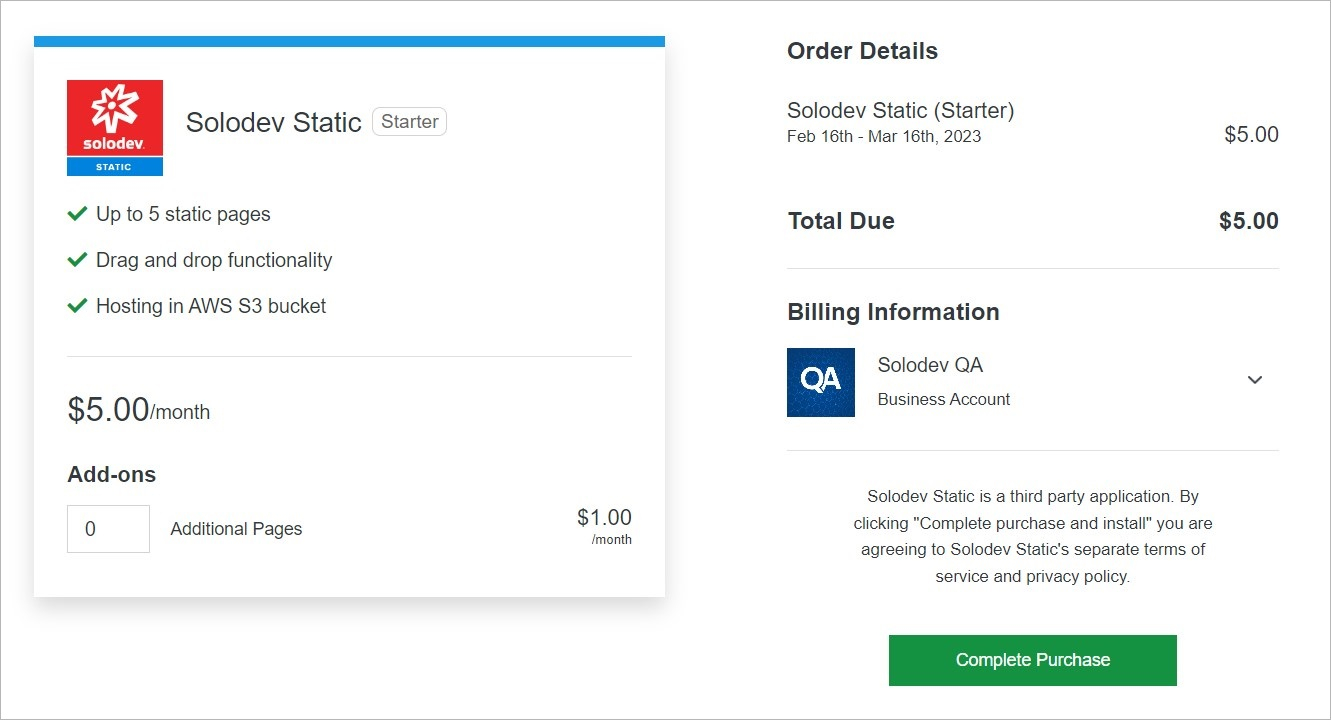
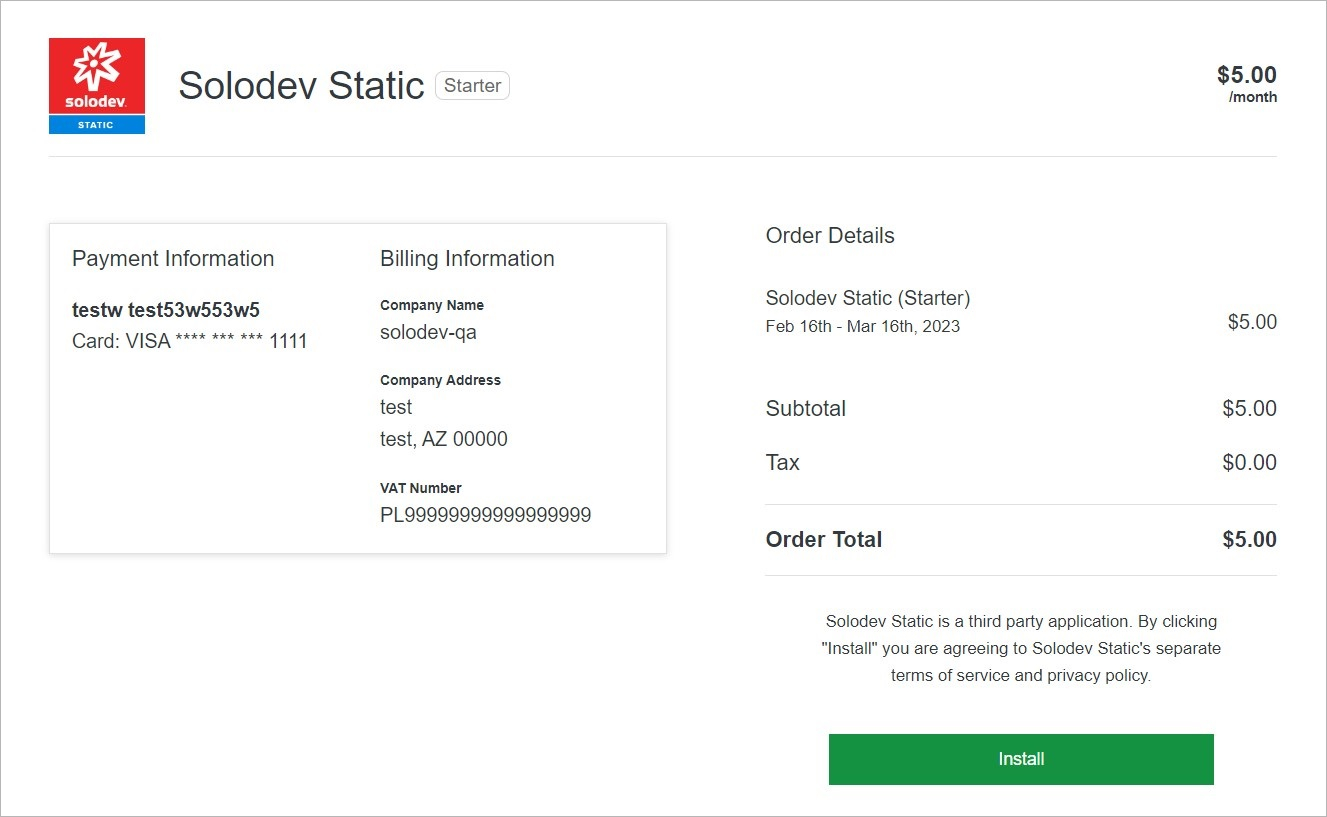
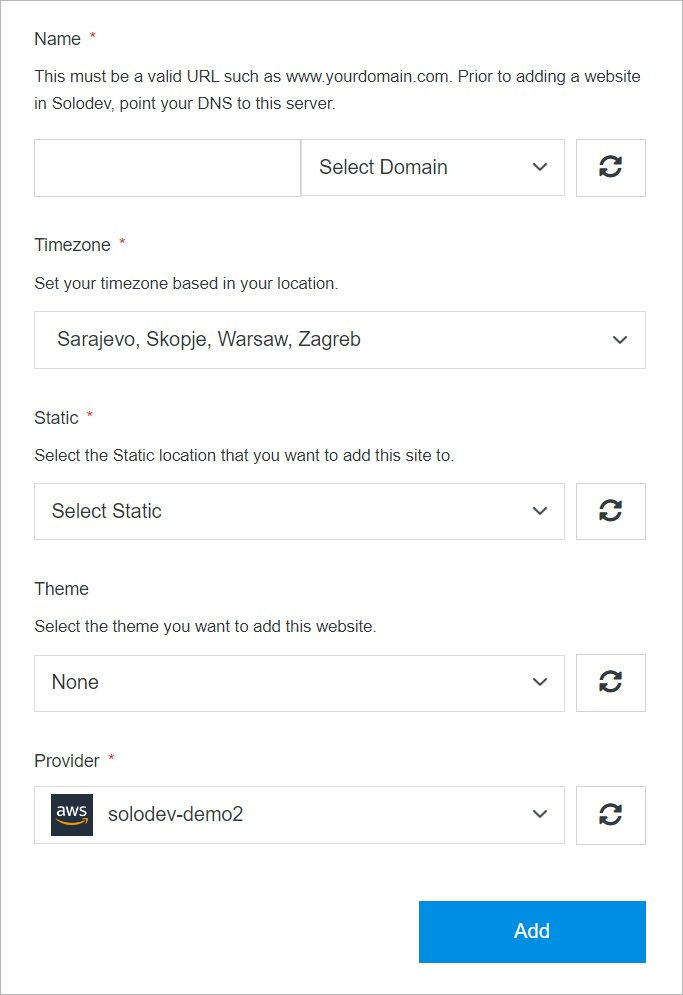
Tip:
When adding a new domain, it must be a valid URL such as www.yourdomain.com. Before adding a website in Solodev, point your DNS to this server.
External
Launch external site.
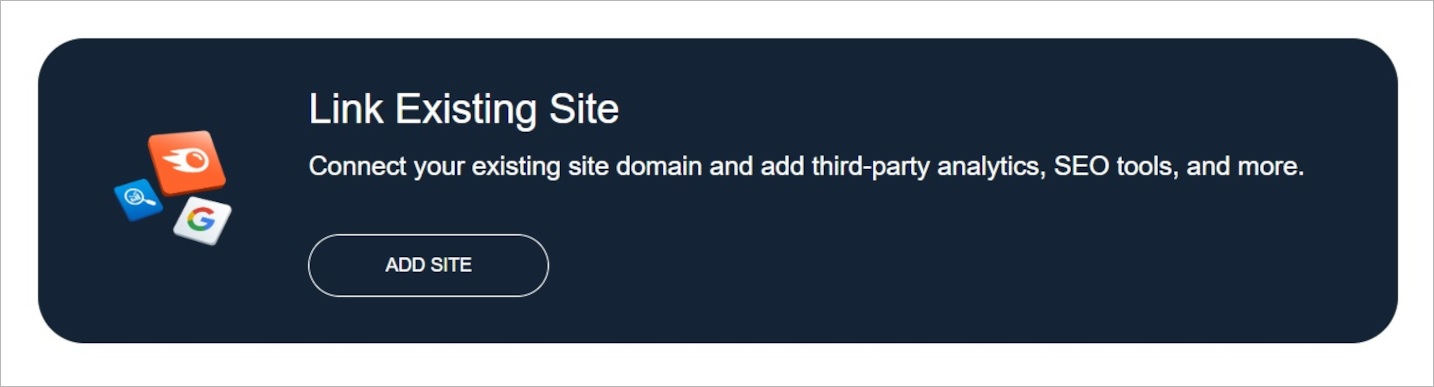
Tip:
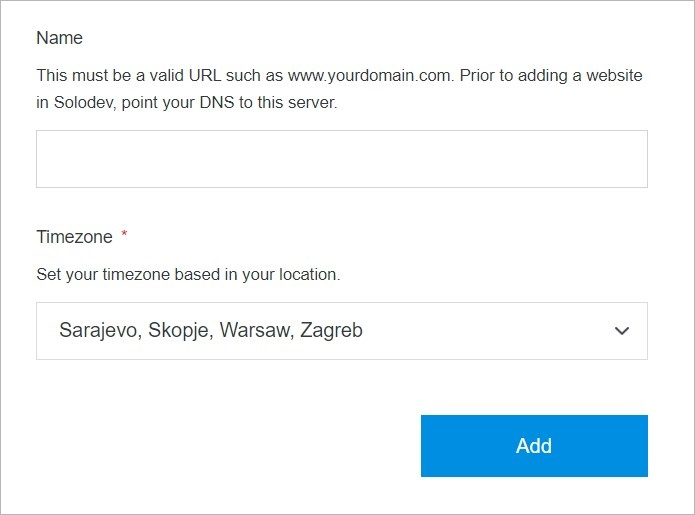
When adding a new domain, it must be a valid URL such as www.yourdomain.com. Before adding a website in Solodev, point your DNS to this server.
Add
Once you have completed all the fields, click Add to create your site.
Note:
The site build process may take several minutes to complete after clicking the Add button. Do not close or quit your browser during this process.