Launching a WordPress Pro website on AWS combines the power of one of the world’s most popular website platforms with the flexibility and scalability of cloud hosting. AWS offers a reliable, secure environment that can handle everything from small blogs to high-traffic business sites. By deploying WordPress Pro on AWS, you gain greater control over your site’s infrastructure, faster load times, and the ability to scale as your audience grows. Whether you're a beginner or a developer, AWS provides the tools you need to build a robust and efficient WordPress Pro site.
Ready to embark on the journey to your very own WordPress-powered website? In this guide, we’ll start by **creating a hosted zone** — staking your claim in the digital world. Then, we’ll move on to **launching WordPress**, **pointing your domain**, and finally, **accessing your WordPress instance** to bring your vision to life. Let’s dive in!
## Create a hosted zone
It’s time to stake your claim in the vast digital wilderness! Let’s use AWS Route 53 to make your domain official and get it ready for action.
1. Log in to your **AWS Management Console**.
2. Type **Route 53** into the search bar in the Services menu — your trusty GPS for all things AWS.
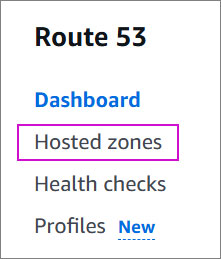
3. In the Route 53 dashboard, click on **Hosted Zones** (your domain’s future home).
4. Ready to build? Click **Create hosted zone** or choose an existing one if you’ve already started.
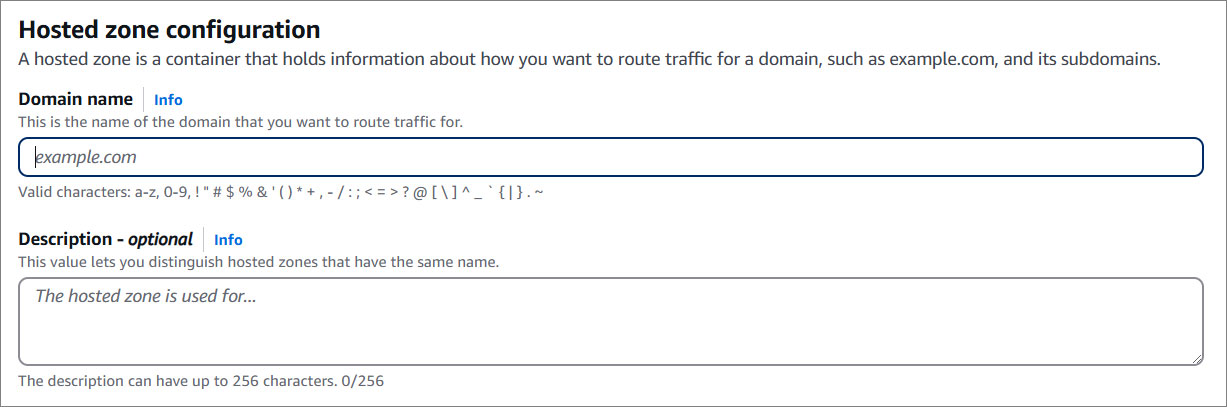
5. In the **"Domain name"** field, type your chosen domain (e.g., example.com).
6. Select **Public hosted zone** because we are all about that public presence.
7. Click that glorious orange **Create hosted zone** button, and voilà!
**Congrats!** Your domain is now set up and ready for action.
!!!warning Note:
Once your hosted zone is created, make sure your domain is properly connected. Here’s what you’ll need to do:
- **For domains registered with another registrar:** Check out the guide on [Making Amazon Route 53 the DNS service for an existing domain](https://docs.aws.amazon.com/Route53/latest/DeveloperGuide/MigratingDNS.html).
- **For domains registered with Route 53:** Follow the steps in [Adding or changing name servers and glue records for a domain](https://docs.aws.amazon.com/Route53/latest/DeveloperGuide/domain-name-servers-glue-records.html).
!!!
!!!
**Pro Tip:** Want to dig deeper? The [AWS Route 53 Documentation](https://docs.aws.amazon.com/Route53/latest/DeveloperGuide/Welcome.html) is your go-to treasure map for advanced configurations.
!!!
## Launch WordPress Pro
The first step is simple — head over to the [AWS Marketplace](https://aws.amazon.com/marketplace/pp/prodview-l5326ck4qjosk?sr=0-4&ref_=beagle&applicationId=AWSMPContessa) and click that **Subscribe** button. It's like securing your seat on the WordPress rocket ship, ready for takeoff. Once you're done, come right back here, and we’ll guide you through the next stages of your adventure!
Ready to launch your WordPress instance? Just follow the CloudFormation Guide. Solodev makes it a breeze — click the Launch button below, and let’s get started!
LAUNCH WORDPRESS
### Step 1: Create stack
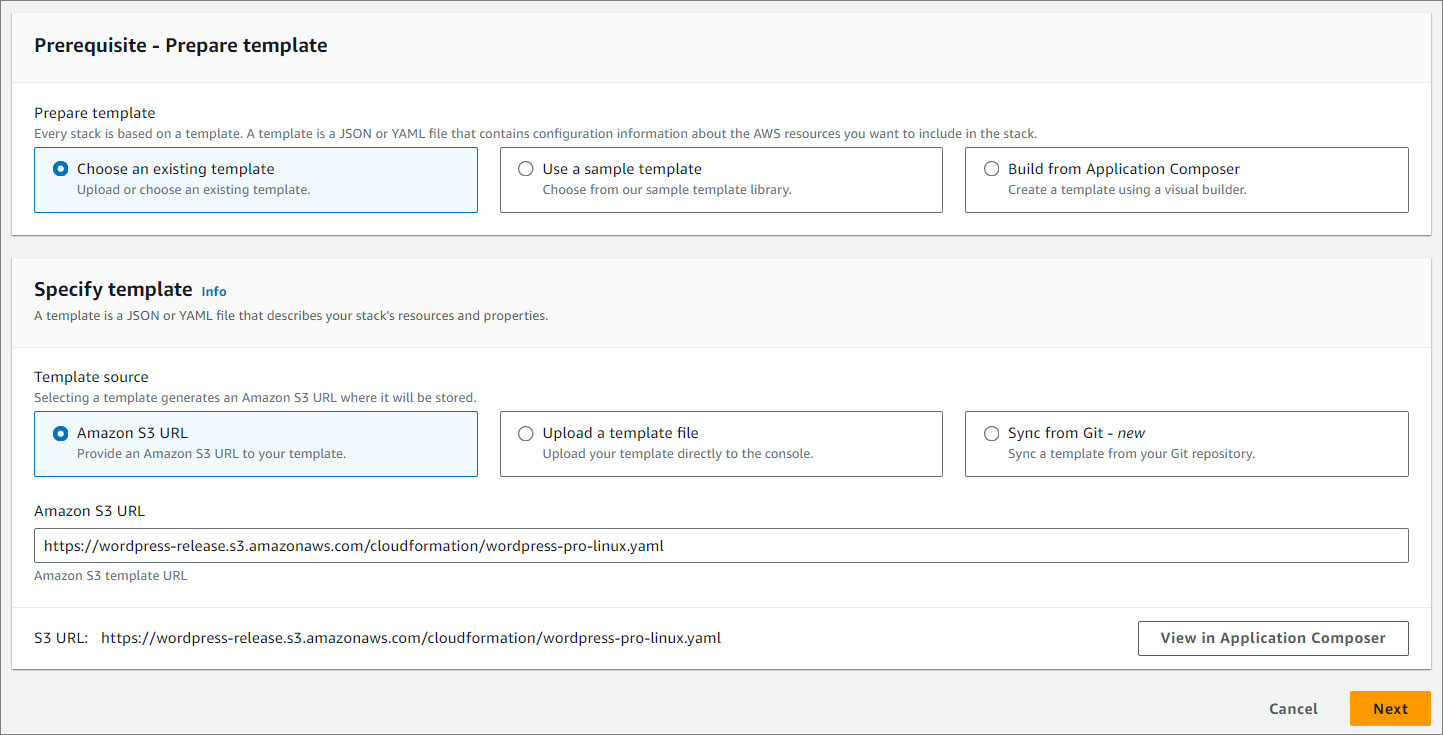
Your CloudFormation template is locked and loaded — just click **Next** to kick things off.
### Step 2: Name your stack & add details
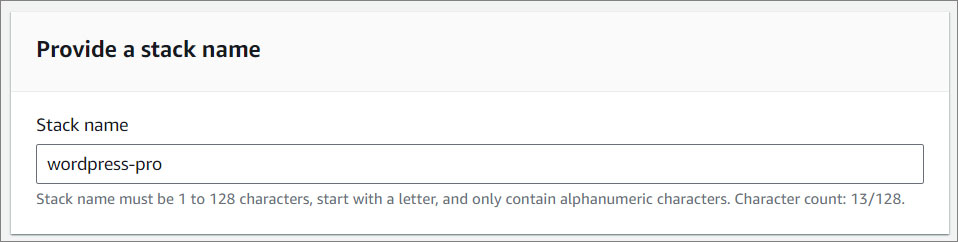
Give your stack a name (get creative or keep it simple), then fill in the setup parameters.
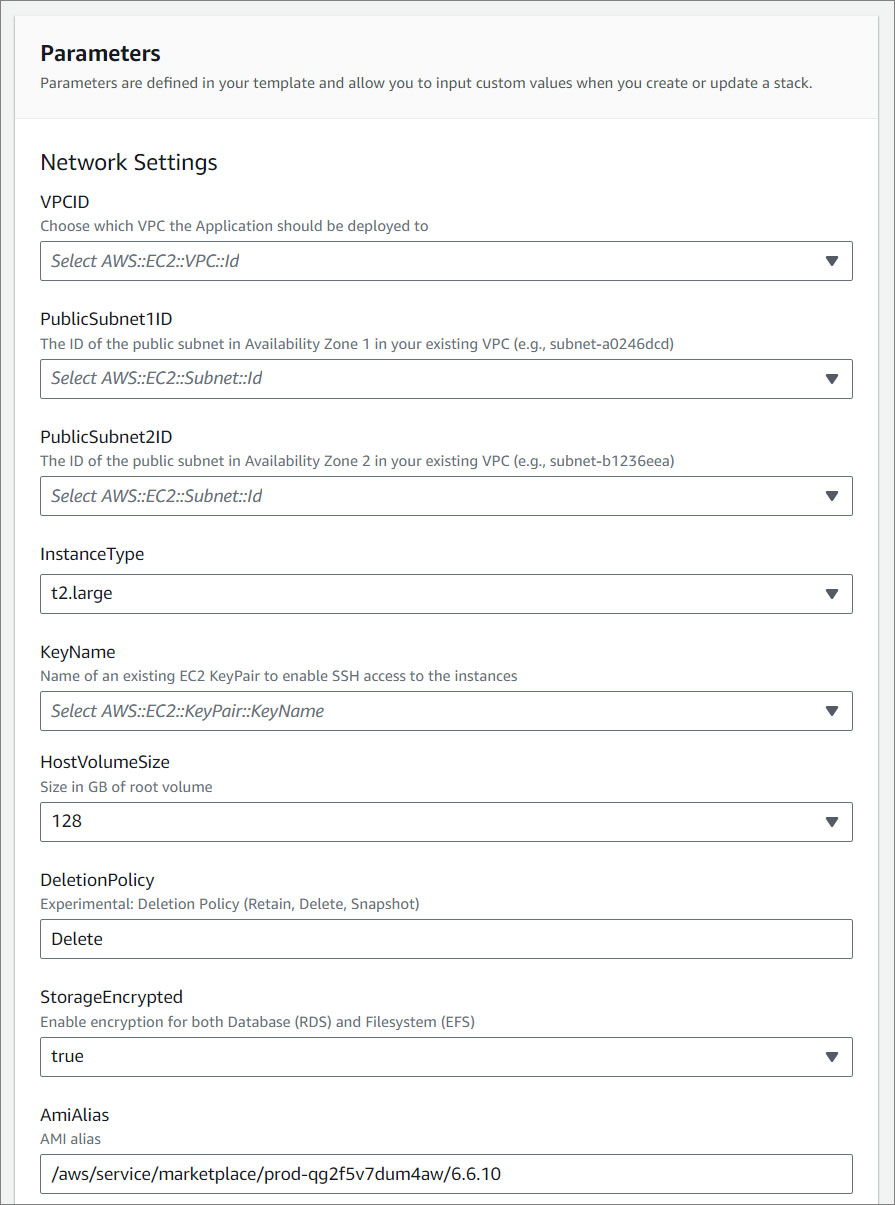
### Step 3: Fine-tune your settings
#### Network Settings:
Choose your VPCID, PublicSubnet1ID, PublicSubnet2ID, and KeyName from the dropdowns.
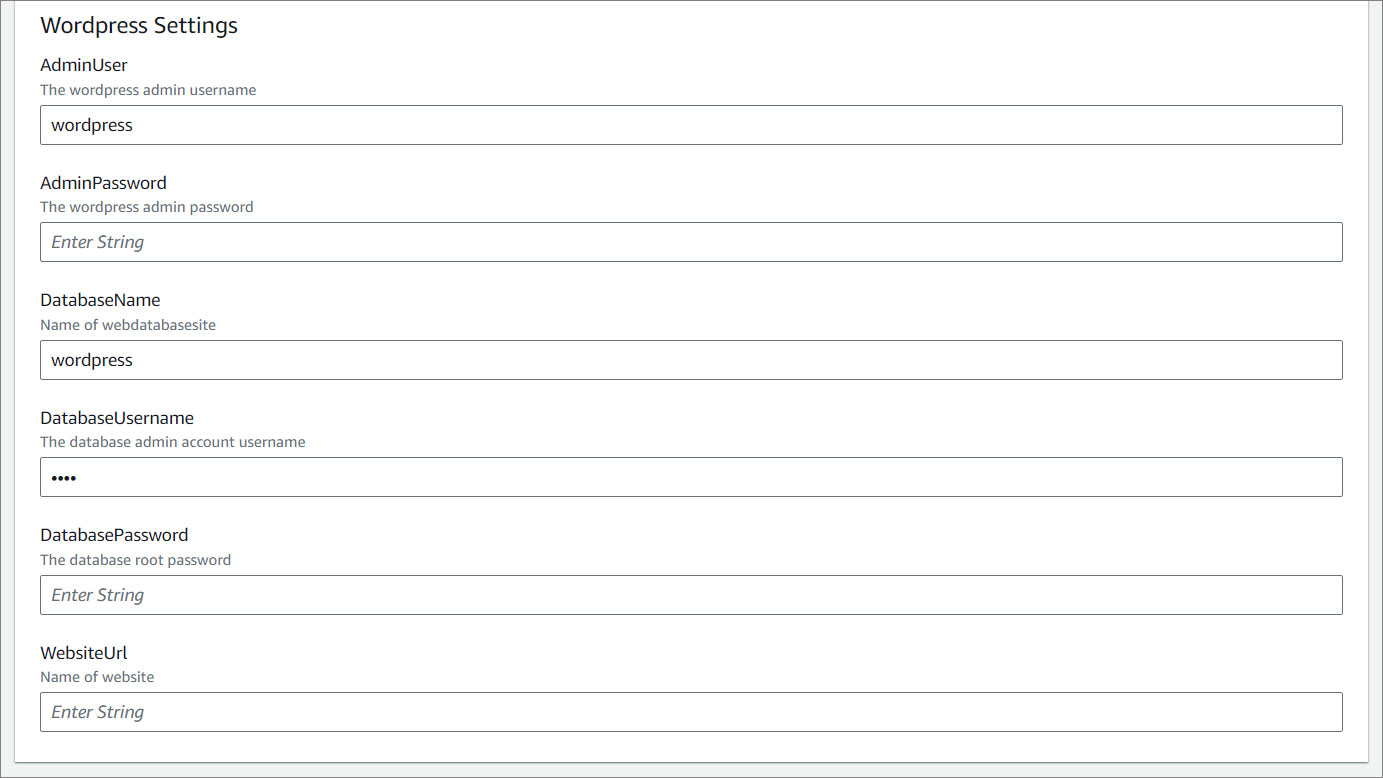
#### WordPress Settings:
Set up the essentials like your AdminPassword, DatabasePassword, WebsiteURL, and Webmaster. Think of this as laying the groundwork for your site’s security and accessibility.
### Step 4: Configure stack options
This part is totally optional, so feel free to skip or explore as needed. If you’d like more details, [check out this guide](/quickstart/cms/wordpress/#configure-stack-options). Once you're ready, acknowledge the AWS CloudFormation terms, and hit **Next** to set things in motion!
### Step 5: Review and create
Take a moment to review your settings and ensure everything looks good. Once you're confident, hit **Submit** — and just like that, you're on your way to launching your stack!
!!!
**Pro tip:** Take a deep breath and relax — this part’s a breeze, but a little patience goes a long way!
!!!
## Point your domain
It’s time to claim your corner of the web using Route 53. Follow these steps to connect your domain to your WordPress site:
1. Navigate to **Route 53** by searching for it in the Services menu.
2. Locate **Hosted Zones** and select the domain you created earlier.
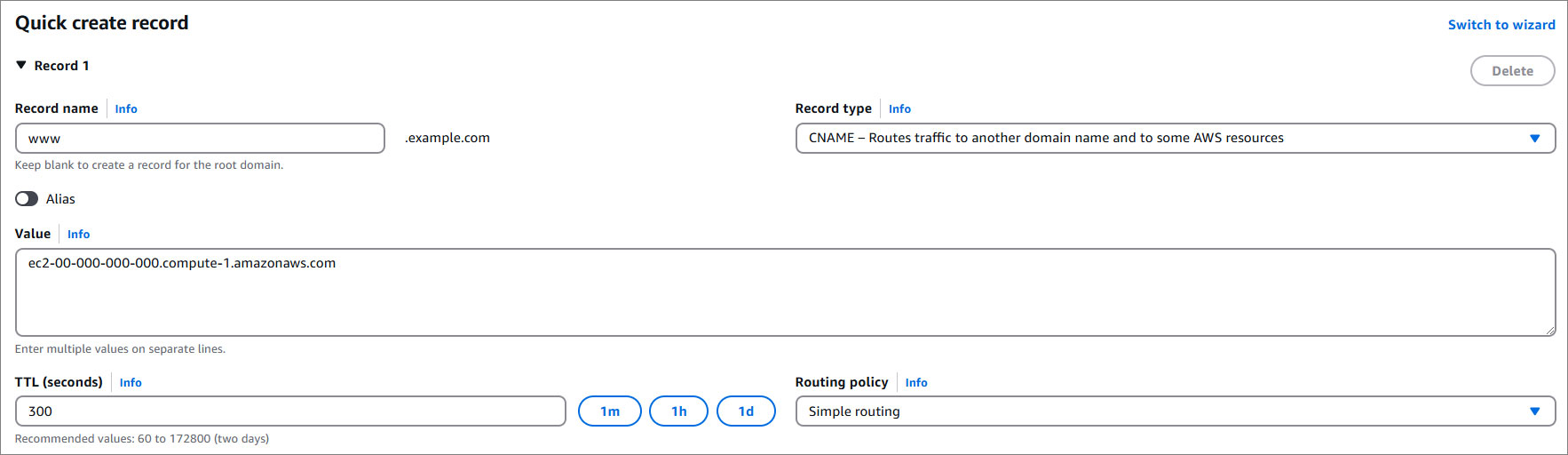
3. Click **Create Record**.
4. Under **Record Name**, type the subdomain name (e.g., `www` for `www.example.com`). From the **Record Type** dropdown, select `CNAME - Routes traffic to another domain name and some AWS resources`, and in the **Value** box, paste the `AdminUrl` of your instance.
!!!
**Pro Tip:** Need the AdminUrl for your WordPress dashboard? Go to CloudFormation, locate your WordPress instance, and click on the Outputs tab.
!!!
## Access your WordPress instance
Once your stack is up and running, it’s time to explore! Head to your browser and paste your website URL — your WordPress site is live and ready for action!
!!!Note:
Ensure you use `http://` instead of `https://` when accessing your site.
!!!
In [Part 2](/tutorials/wordpress/secure-wordpress-with-cdn/), we’ll focus on enhancing your site’s performance by adding a lightning-fast CDN. This step will supercharge your website, ensuring faster load times and an optimized user experience for visitors around the world.