#

<div class="header">
  <div class="inner">
    <img src="/static/images/logos/tag-manager-logo.png" alt="Google Tag Manager Logo">
    <div>
      <h1 style="color: #222;">Google Tag Manager</h1>
      <p style="padding-left: 2rem; margin-bottom: 0; color: #222;">Manage all your website's tags in one place.</p>
    </div>
  </div>
  <a href="https://tagmanager.google.com/" rel="noopener noreferrer" target="_blank" class="btn-orange-lg">SIGN UP <span style="padding-left: .5rem; display: inline-flex; align-items: center;"><svg xmlns="http://www.w3.org/2000/svg" viewBox="0 0 16 16" width="20" height="20" fill="#fff"><path d="M3.75 2h3.5a.75.75 0 0 1 0 1.5h-3.5a.25.25 0 0 0-.25.25v8.5c0 .138.112.25.25.25h8.5a.25.25 0 0 0 .25-.25v-3.5a.75.75 0 0 1 1.5 0v3.5A1.75 1.75 0 0 1 12.25 14h-8.5A1.75 1.75 0 0 1 2 12.25v-8.5C2 2.784 2.784 2 3.75 2Zm6.854-1h4.146a.25.25 0 0 1 .25.25v4.146a.25.25 0 0 1-.427.177L13.03 4.03 9.28 7.78a.751.751 0 0 1-1.042-.018.751.751 0 0 1-.018-1.042l3.75-3.75-1.543-1.543A.25.25 0 0 1 10.604 1Z"></path></svg></span></a>
</div>

Tag management made easy. Google Tag Manager delivers simple, reliable, easily integrated tag management solutions - for free.

## Prerequisites
- Preexisting [website](https://cms.solodev.net/workspace/websites/).

## Install GTM on your Website

1. Go to Google Tag Manager and login to your account. If you don't have one, [create a new account](https://accounts.google.com/signup).

2. Set up a container for your website (e.g., "www.example.com").

3. After creating the container, Google Tag Manager will provide you with two code snippets: one for the <head> section and another for the <body> section of your website.

4. Add the GTM Code to Your Website.

{% tabs %}

{% tab title="CMS" %}

<h3 style="margin-top: 0;"><span class="text-teal" style="margin-top: 0;">Copy snippet in head tag</span></h3>

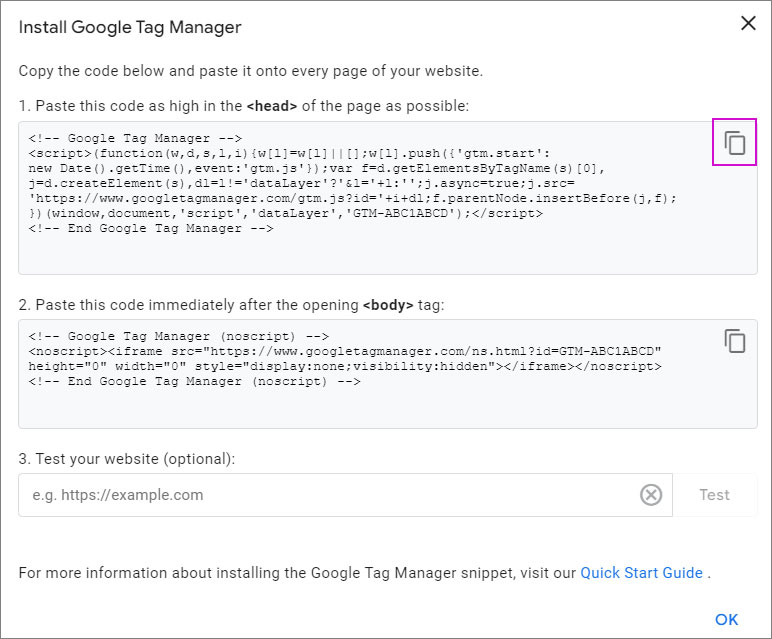
1. Copy the first code snippet.

<p><img src="/static/images/tag-manager/analytics-first-code-snippet.jpg" alt="GTM snippet code" style="width: 50%;"></p>

2. Navigate to the CMS and select the website where you want to add GTM to.

3. Click on **Update Website**.
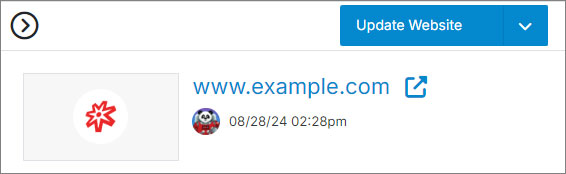
<p><img src="/static/images/tag-manager/analytics-cms-update-website.jpg" alt="Update Website CMS" style="width: 40%;"></p>

4. Navigate to the **Meta Information** tab.
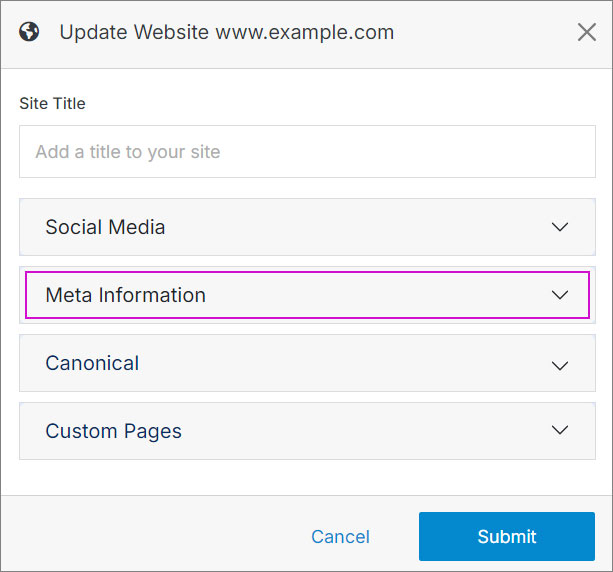
<p><img src="/static/images/tag-manager/analytics-cms-meta-information.jpg" alt="CMS Meta Information Tab" style="width: 40%;"></p>

5. Paste the code snippet on the **Global Header Insert** textarea.
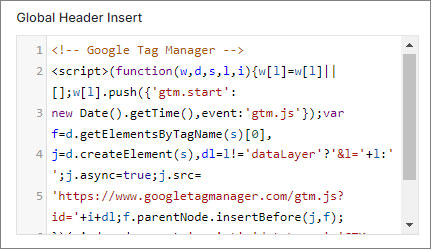
<p><img src="/static/images/tag-manager/analytics-cms-global-header.jpg" alt="CMS Global Header Insert Textarea" style="width: 40%;"></p>

6. Click <span class="text-orange">**Submit**</span>.

<h3 style="margin-top: 0;"><span class="text-teal" style="margin-top: 0;">Copy snippet in body tag</span></h3>

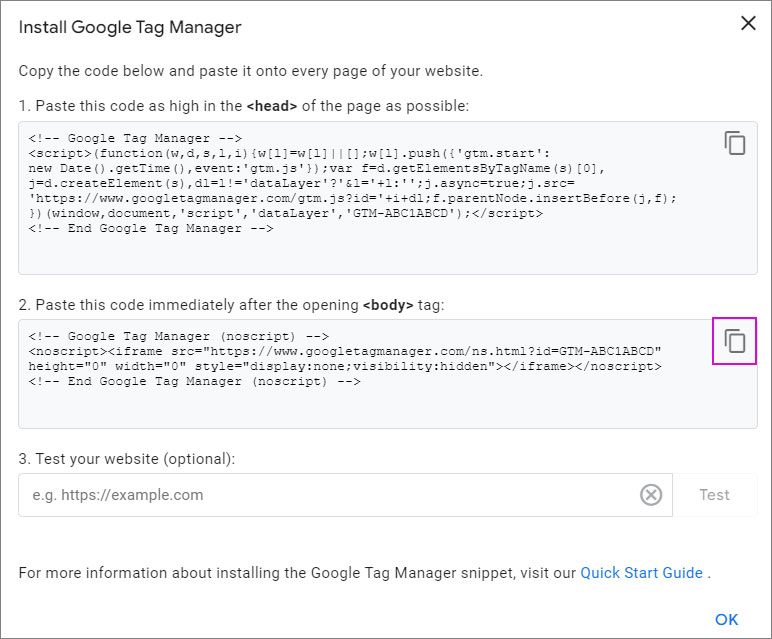
1. Copy the second code snippet.

<p><img src="/static/images/tag-manager/analytics-second-code-snippet.jpg" alt="GTM snippet code" style="width: 50%;"></p>

2. Go to the file that serves as your [base template](https://cms.solodev.net/tutorials/cms/add-page-template/#adding-your-base-template-to-your-page-template).
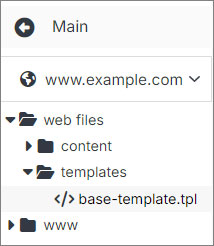
<p><img src="/static/images/tag-manager/base-template-left-nav.jpg" alt="CMS base template in the left nav"></p>

3. Paste the code snippet at the top of the file.
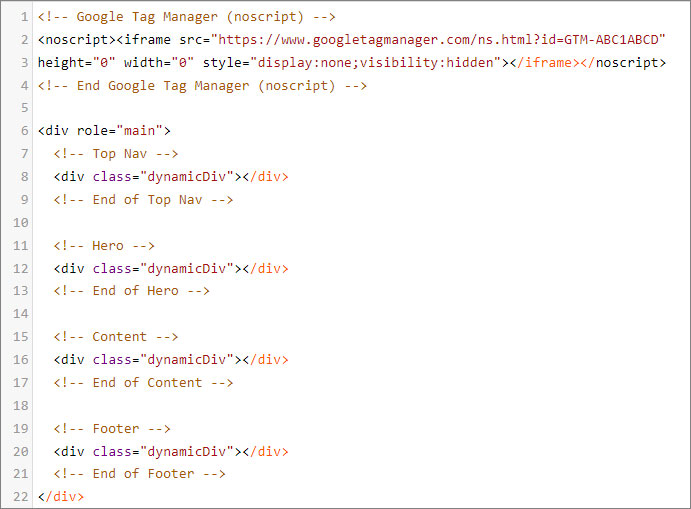
<p><img src="/static/images/tag-manager/analytics-base-template.jpg" alt="CMS base template with analytics snippet" style="width: 60%;"></p>

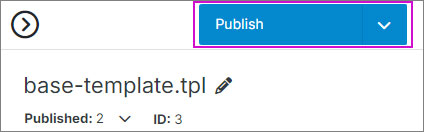
4. Click <span class="text-orange">**Publish**</span>.

<p><img src="/static/images/tag-manager/base-template-publish.jpg" alt="CMS publish button" style="width: 28%;"></p>

{% endtab %}
{% tab title="WordPress" %}

<h3 style="margin-top: 0;"><span class="text-teal" style="margin-top: 0;">Copy snippet in head tag</span></h3>

1. Copy the first code snippet.

<p><img src="/static/images/tag-manager/analytics-first-code-snippet.jpg" alt="GTM snippet code" style="width: 50%;"></p>

2. Log in to your **WordPress Dashboard**.

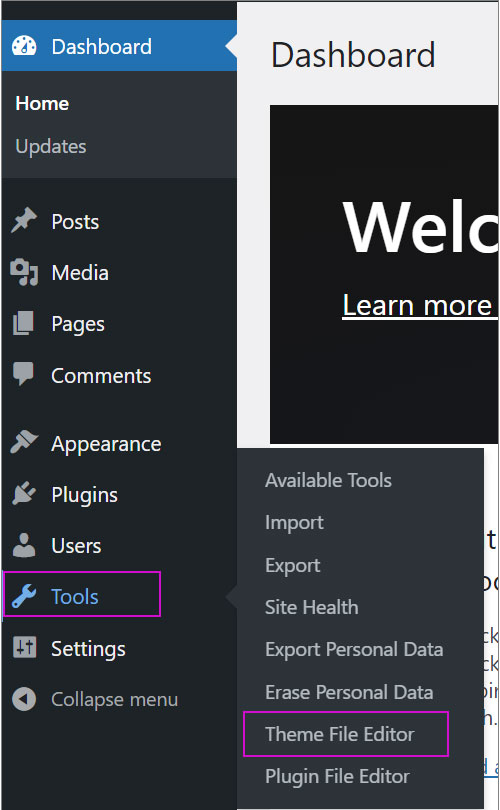
3. Navigate to **Tools** and then to **Theme File Editor**.
<p><img src="/static/images/tag-manager/analytics-wp-editor.jpg" alt="WordPress Theme File Editor" style="width: 26%;"></p>

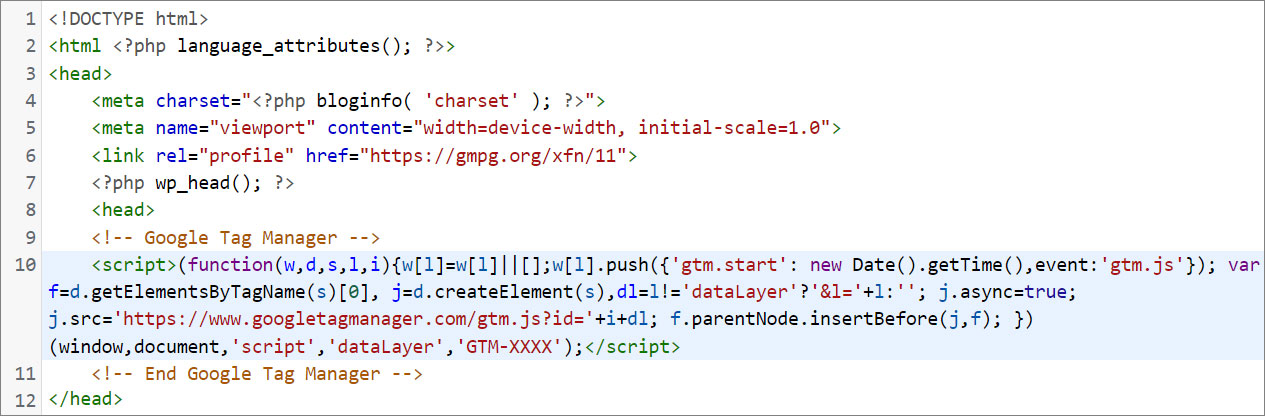
4. Paste the code snippet in the `header.php` file.
<p><img src="/static/images/tag-manager/analytics-wp-header.jpg" alt="CMS Meta Information Tab" style="width: 60%;"></p>

5. Click <span class="text-orange">**Update File**</span>.

<h3 style="margin-top: 0;"><span class="text-teal" style="margin-top: 0;">Copy snippet in body tag</span></h3>

1. Copy the second code snippet.

<p><img src="/static/images/tag-manager/analytics-second-code-snippet.jpg" alt="GTM snippet code" style="width: 50%;"></p>

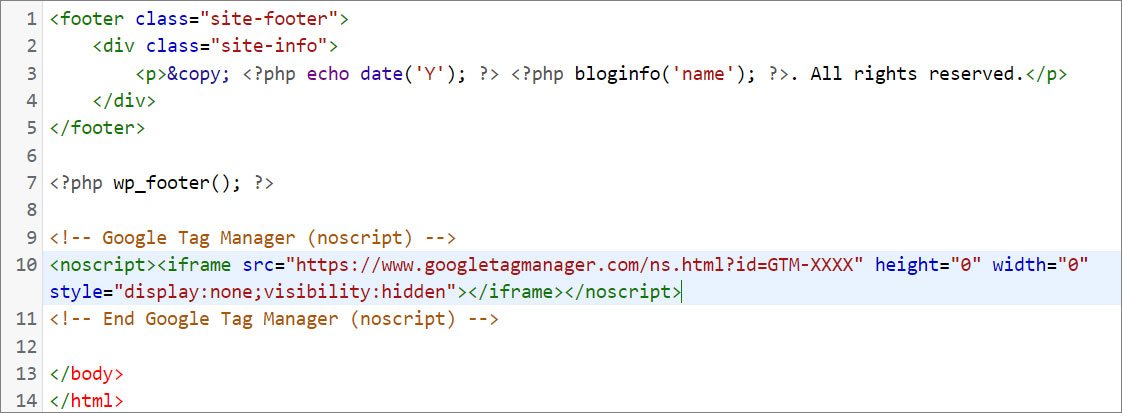
2. Paste the code snippet in the `footer.php` file. 
<p><img src="/static/images/tag-manager/analytics-wp-footer.jpg" alt="CMS base template with analytics snippet" style="width: 60%;"></p>

!!!Note:
If your website does not have a `footer.php`, paste the code in the `header.php` immediately after the opening `body` tag.
!!!

3. Click <span class="text-orange">**Update File**</span>.

{% endtab %}
{% tab title="Drupal" %}

<h3 style="margin-top: 0;"><span class="text-teal" style="margin-top: 0;">Copy snippet in head tag</span></h3>

1. Copy the first code snippet.

<p><img src="/static/images/tag-manager/analytics-first-code-snippet.jpg" alt="GTM snippet code" style="width: 50%;"></p>

2. Log in to your **Drupal Admin Dashboard**.

3. Navigate to **Admin** and then to **Appearance** to find your active theme.

4. Find the `html.html.twig` file in your active theme directory (e.g., /themes/custom/[your-theme-name]/templates/).

!!!Note:
If it doesn’t exist, you may need to create one or copy it from the core or base theme.
!!!

5. Paste the code snippet in the `html.html.twig` file immediately before the closing `</head>` tag.

<h3 style="margin-top: 0;"><span class="text-teal" style="margin-top: 0;">Copy snippet in body tag</span></h3>

1. Copy the second code snippet.

<p><img src="/static/images/tag-manager/analytics-second-code-snippet.jpg" alt="GTM snippet code" style="width: 50%;"></p>

2. Paste the code snippet in the `html.html.twig` file immediately after the opening `<body>` tag.

3. Clear your Drupal cache by navigating to **Configuration > Performance** and clicking <span class="text-orange">**Clear All Caches**</span>.

{% endtab %}

{% endtabs %}

6. Use the [**"Preview"** mode](https://support.google.com/tagmanager/answer/6107056) in Google Tag Manager to check if the tags are firing correctly, or use the Google Tag Assistant extension in your browser to verify the installation.

<style>
  /* Headers */
  .header {
    display: flex;
    align-items: center;
    justify-content: space-between;
    padding: 2rem 1.5rem;
    margin-bottom: 2rem;
    background-color: #eef6ff;
  }
  .header .inner {
    display: flex;
    align-items: center;
    justify-content: start;
  }
  .header img {
    width: 80px;
  }
  .header h1 {
    margin-left: 0;
    font-size: 2rem;
    margin-bottom: 0.25rem;
  }
  .header p {
    padding-left: 2rem;
    margin-bottom: 0;
  }
</style>