#

<div class="header">
  <div class="inner">
    <img src="/static/images/logos/search-console-logo.svg" alt="Search Console Logo">
    <div>
      <h1 style="color: #222;">Search Console</h1>
      <p style="padding-left: 2rem; margin-bottom: 0; color: #222;">Make your site shine in Google Search results.</p>
    </div>
  </div>
  <a href="https://search.google.com/" rel="noopener noreferrer" target="_blank" class="btn-orange-lg">SIGN UP <span style="padding-left: .5rem; display: inline-flex; align-items: center;"><svg xmlns="http://www.w3.org/2000/svg" viewBox="0 0 16 16" width="20" height="20" fill="#fff"><path d="M3.75 2h3.5a.75.75 0 0 1 0 1.5h-3.5a.25.25 0 0 0-.25.25v8.5c0 .138.112.25.25.25h8.5a.25.25 0 0 0 .25-.25v-3.5a.75.75 0 0 1 1.5 0v3.5A1.75 1.75 0 0 1 12.25 14h-8.5A1.75 1.75 0 0 1 2 12.25v-8.5C2 2.784 2.784 2 3.75 2Zm6.854-1h4.146a.25.25 0 0 1 .25.25v4.146a.25.25 0 0 1-.427.177L13.03 4.03 9.28 7.78a.751.751 0 0 1-1.042-.018.751.751 0 0 1-.018-1.042l3.75-3.75-1.543-1.543A.25.25 0 0 1 10.604 1Z"></path></svg></span></a>
</div>

Google Search Console offers tools and reports to help you measure your site's search traffic and performance, fix issues, and make your site shine in Google Search results.

## Prerequisites
- Preexisting [website](https://cms.solodev.net/workspace/websites/).

## Installation

1. Go to **Google Search Console** and login to your account. If you don't have one, [create a new account](https://accounts.google.com/signup).

2. Click on the **Start now** button to add a new site, or **Add property** if you already have other sites.
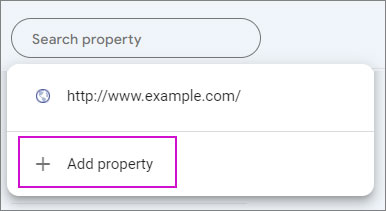
<p><img src="/static/images/console/console-add-property.jpg" alt="Google Search Console add property" style="width: 30%;"></p>

3. Choose the **Domain** option for full domain coverage (including subdomains and protocols) or choose the **URL Prefix** option to track only a specific URL prefix (like `https://www.example.com`).
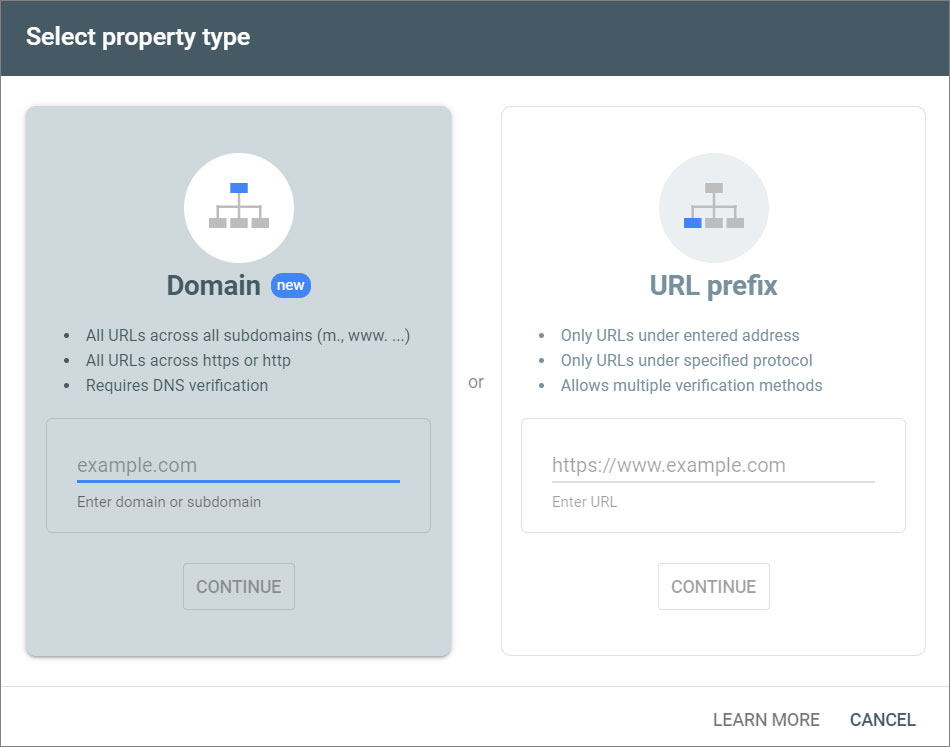
<p><img src="/static/images/console/console-choose-domain.jpg" alt="Google Search options" style="width: 54%;"></p>

4. Verify your website ownership.

{% tabs %}

{% tab title="HTML File" %}

1. Download the HTML verification file provided.

2. Upload this file to the root directory of your website.
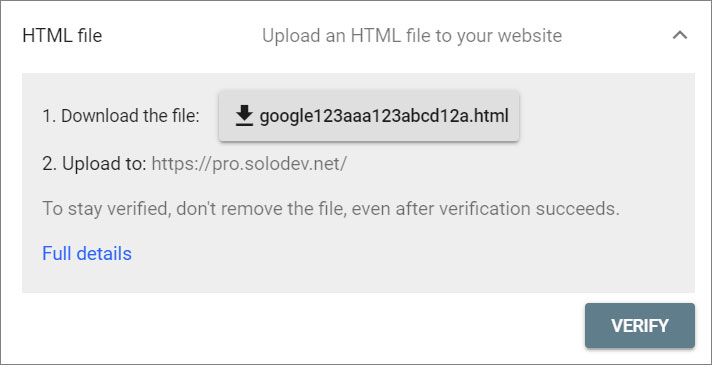
<p><img src="/static/images/console/console-html-file-verification.jpg" alt="Google Search Console HTML File Record" style="width: 40%;"></p>

3. Click **Verify**.

{% endtab %}
{% tab title="HTML Tag" %}

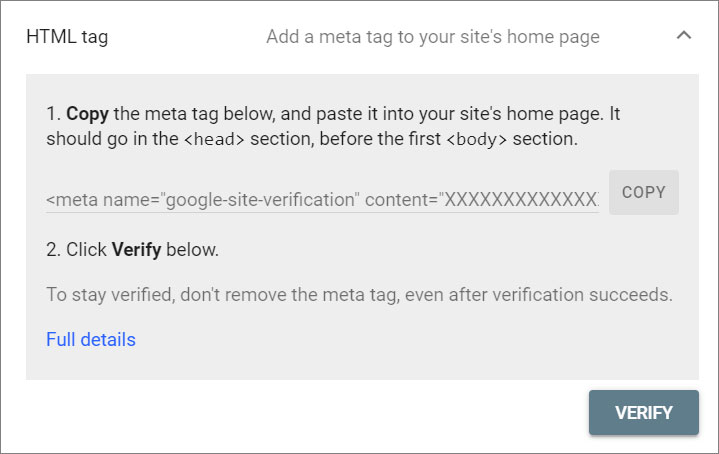
1. Copy the provided meta tag.

2. Paste it into the `<head>` section of your homepage HTML.

<p><img src="/static/images/console/console-html-tag-verification.jpg" alt="Google Search Console HTML Tag Record" style="width: 40%;"></p>

3. Click **Verify**.

{% endtab %}
{% tab title="Google Analytics" %}
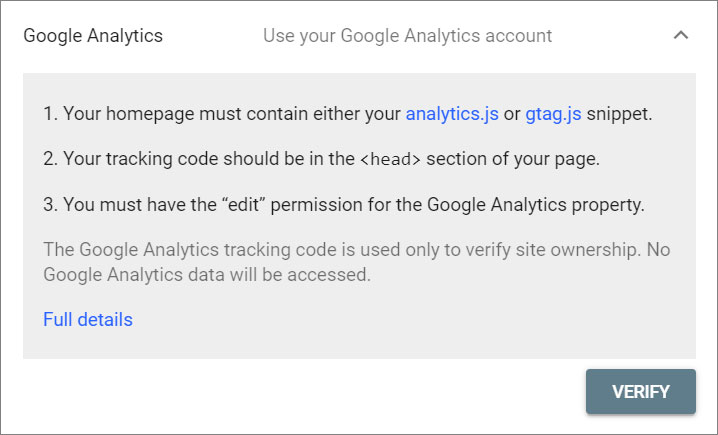
Use this method if you have Google Analytics installed on your website.

1. Select this method in Search Console.
<p><img src="/static/images/console/console-analytics-verification.jpg" alt="Google Search Console HTML Tag Record" style="width: 40%;"></p>

2. Click **Verify**.

!!!Note:
Ensure you have **"edit"** permission in Google Analytics.
!!!

{% endtab %}
{% tab title="Google Tag Manager" %}

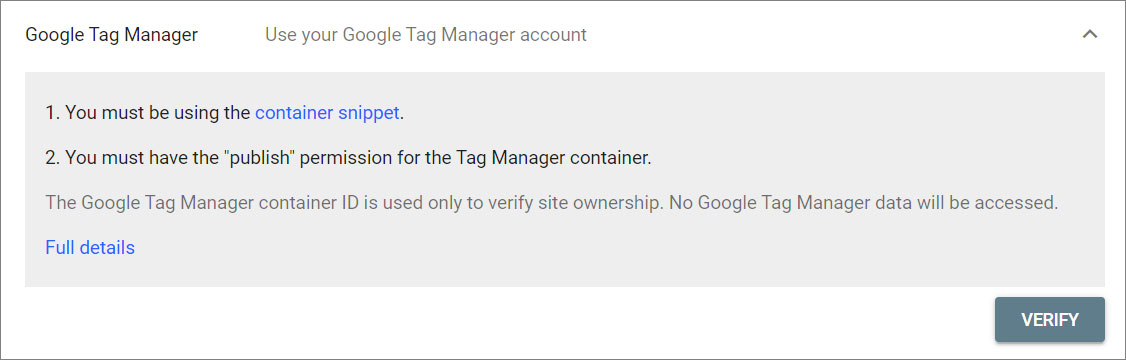
Use this method if you have Google Tag Manager (GTM) installed on your website.

1. Select this method in Search Console.
<p><img src="/static/images/console/console-tag-manager-verification.jpg" alt="Google Search Console HTML Tag Record" style="width: 50%;"></p>

2. Click **Verify**.

!!!Note:
Ensure you have **"publish"** permission in GTM.
!!!

{% endtab %}
{% tab title="DNS Record" %}
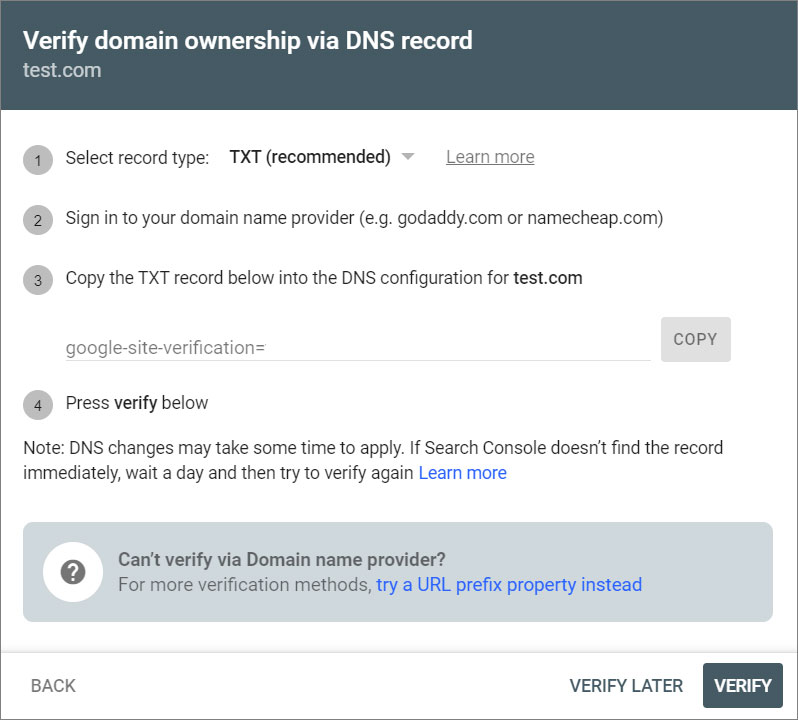
Choose this option to add a TXT record to your domain's DNS settings.

1. Follow the instructions provided by Google to add the record through your domain registrar or DNS provider.
<p><img src="/static/images/console/console-dns-verification.jpg" alt="Google Search Console DNS Record" style="width: 40%;"></p>

2. Click **Verify**.

{% endtab %}

{% endtabs %}

<style>
  /* Headers */
  .header {
    display: flex;
    align-items: center;
    justify-content: space-between;
    padding: 2rem 1.5rem;
    margin-bottom: 2rem;
    background-color: #eef6ff;
  }
  .header .inner {
    display: flex;
    align-items: center;
    justify-content: start;
  }
  .header img {
    width: 80px;
  }
  .header h1 {
    margin-left: 0;
    font-size: 2rem;
    margin-bottom: 0.25rem;
  }
  .header p {
    padding-left: 2rem;
    margin-bottom: 0;
  }
</style>