#

<div class="header">
  <div class="inner">
    <img src="/static/images/logos/analytics-logo.jpg" alt="Google Analytics Logo">
    <div>
      <h1 style="color: #222;">Google Analytics</h1>
      <p style="padding-left: 2rem; margin-bottom: 0; color: #222;">Analyze your website data with the world's leading analytics platform.</p>
    </div>
  </div>
  <a href="https://analytics.google.com/" rel="noopener noreferrer" target="_blank" class="btn-orange-lg">SIGN UP <span style="padding-left: .5rem; display: inline-flex; align-items: center;"><svg xmlns="http://www.w3.org/2000/svg" viewBox="0 0 16 16" width="20" height="20" fill="#fff"><path d="M3.75 2h3.5a.75.75 0 0 1 0 1.5h-3.5a.25.25 0 0 0-.25.25v8.5c0 .138.112.25.25.25h8.5a.25.25 0 0 0 .25-.25v-3.5a.75.75 0 0 1 1.5 0v3.5A1.75 1.75 0 0 1 12.25 14h-8.5A1.75 1.75 0 0 1 2 12.25v-8.5C2 2.784 2.784 2 3.75 2Zm6.854-1h4.146a.25.25 0 0 1 .25.25v4.146a.25.25 0 0 1-.427.177L13.03 4.03 9.28 7.78a.751.751 0 0 1-1.042-.018.751.751 0 0 1-.018-1.042l3.75-3.75-1.543-1.543A.25.25 0 0 1 10.604 1Z"></path></svg></span></a>
</div>

Measure your website traffic and evaluate the performance of your marketing, content, products, and more with Google Analytics.

## Prerequisites
- Preexisting [website](https://cms.solodev.net/workspace/websites/).
- Have a [Google Tag Manager](/quickstart/digital/tag-manager) account.

## Installation

1. Go to **Google Analytics** and login to your account. If you don't have one, [create a new account](https://accounts.google.com/signup).

2. Create a property for your website by following the steps provided.
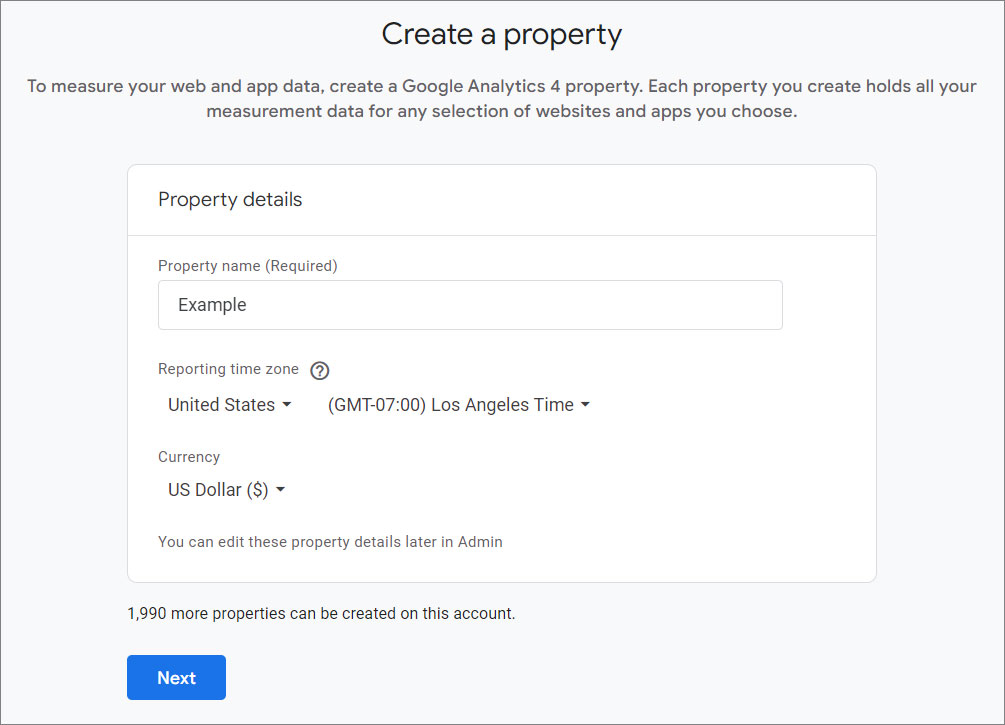
<p><img src="/static/images/analytics/analytics-create-property.jpg" alt="Analytics create a property" style="width: 50%;"></p>

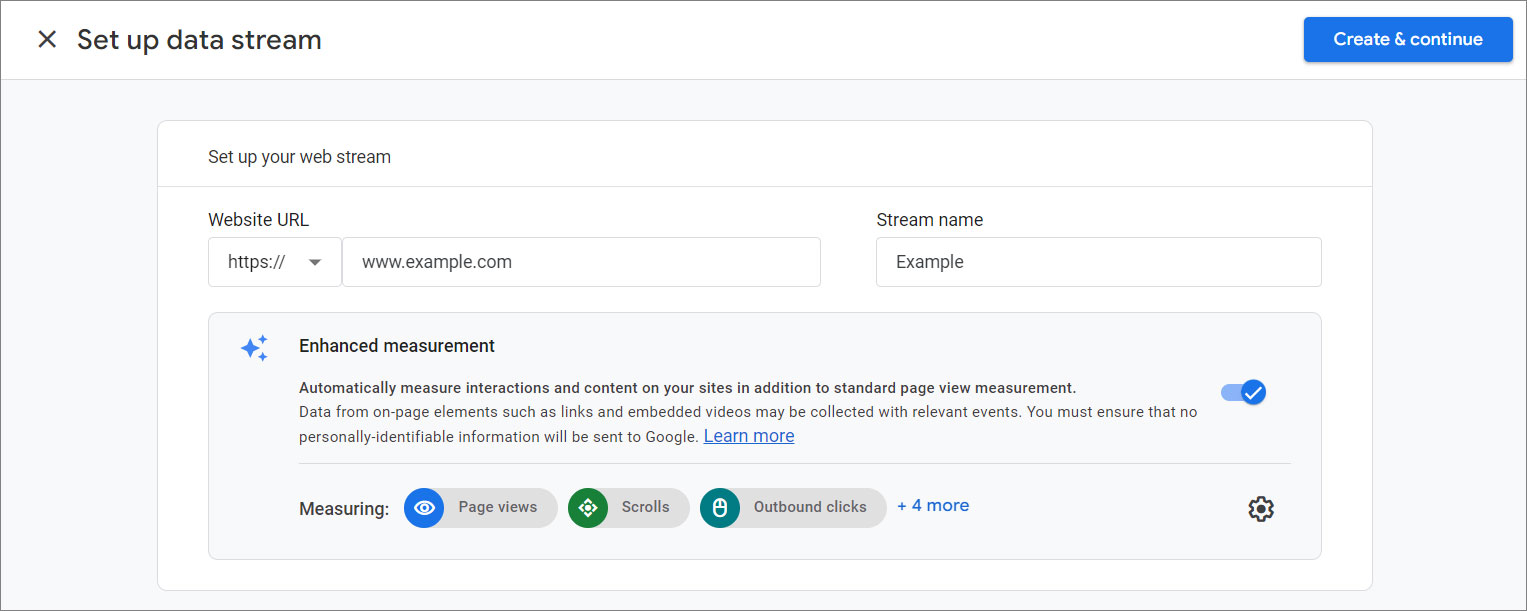
3. Set up your web stream.

<p><img src="/static/images/analytics/analytics-web-stream.jpg" alt="Analytics web stream" style="width: 75%;"></p>

4. Click **Create & continue**.

5. Obtain your **Google Analytics Measurement ID** (for GA4, it starts with "G-") by clicking on your property.

<p><img src="/static/images/analytics/analytics-measurement-id.jpg" alt="Analytics Measurement ID" style="width: 60%;"></p>

{% tabs %}

{% tab title="Tag Manager" %}

1. Go to **Google Tag Manager** and log in.

2. Select the container for the website where you want to add Google Analytics.

3. Click on **"Tags"** in the left sidebar.

4. Then, click the **New** button to create a new tag.
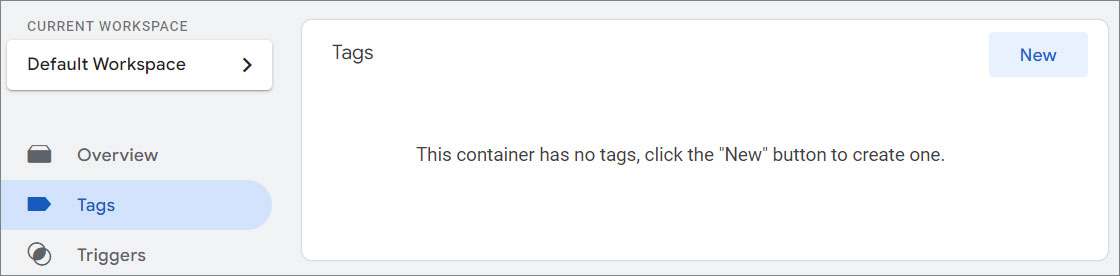
<p><img src="/static/images/tag-manager/gtm-new-tag.jpg" alt="Google Tag Manager New Tag" style="width: 60%;"></p>

5. Name your tag something descriptive, like **"GA4 Configuration"**.

6. Choose **Tag Configuration** and select **Google Tag**.

7. Paste your Google Analytics Measurement ID (e.g., G-XXXXXXX) into the appropriate field.
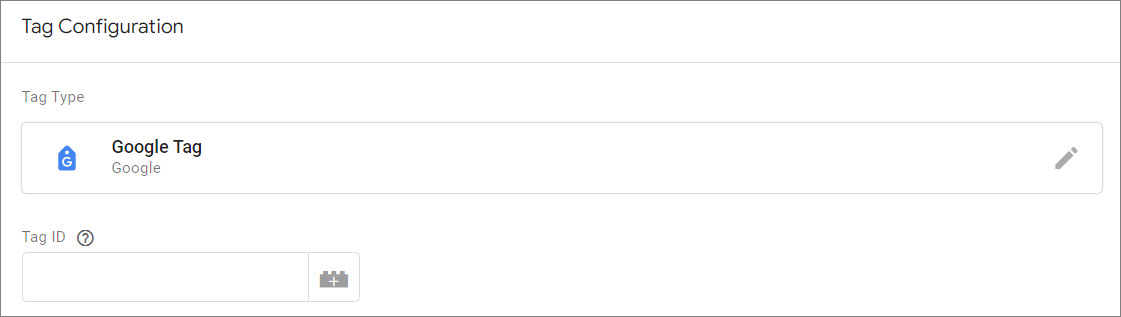
<p><img src="/static/images/tag-manager/gtm-new-tag-id.jpg" alt="Google Tag Manager New Tag ID" style="width: 60%;"></p>

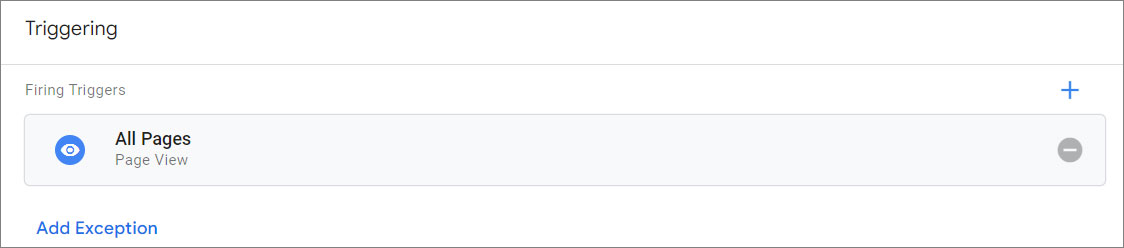
8. Click on **"Triggering"**. Choose **"All Pages"** as the trigger to fire this tag on every page of your website.
<p><img src="/static/images/tag-manager/gtm-new-tag-all-pages.jpg" alt="Google Tag Manager All Pages Trigger" style="width: 60%;"></p>

9. Click <span class="text-orange">**Save**</span>.

10. Use the [**"Preview"** mode](https://support.google.com/tagmanager/answer/6107056) in Google Tag Manager to check if the tags are firing correctly, or use the Google Tag Assistant extension in your browser to verify the installation.

<p><img src="/static/images/tag-manager/gtm-preview.jpg" alt="Google Tag Manager Preview" style="width: 32%;"></p>

11. Click <span class="text-orange">**Publish**</span>.

{% endtab %}
{% tab title="Manual" %}

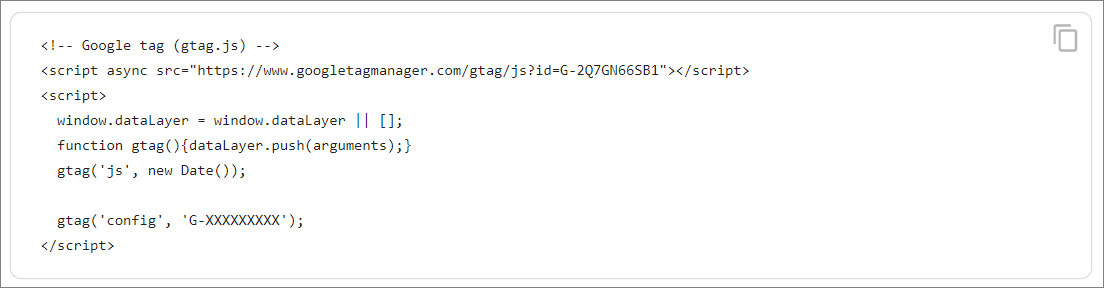
1. Copy the code snippet provided.
<p><img src="/static/images/analytics/analytics-code-snippet.jpg" alt="Analytics code snippet" style="width: 80%;"></p>

2. Paste it on every page of your website, immediately after the `<head>` element.

{% endtab %}

{% endtabs %}

<style>
  /* Headers */
  .header {
    display: flex;
    align-items: center;
    justify-content: space-between;
    padding: 2rem 1.5rem;
    margin-bottom: 2rem;
    background-color: #eef6ff;
  }
  .header .inner {
    display: flex;
    align-items: center;
    justify-content: start;
  }
  .header img {
    width: 80px;
  }
  .header h1 {
    margin-left: 0;
    font-size: 2rem;
    margin-bottom: 0.25rem;
  }
  .header p {
    padding-left: 2rem;
    margin-bottom: 0;
  }
</style>