#

<div class="header">
  <div class="inner">
    <img src="/static/images/logos/ads-logo.jpg" alt="Google Ads Logo">
    <div>
      <h1 style="color: #222;">Google Ads</h1>
      <p style="padding-left: 2rem; margin-bottom: 0; color: #222;">Get in front of customers when they’re searching for businesses like yours.</p>
    </div>
  </div>
  <a href="https://ads.google.com/" rel="noopener noreferrer" target="_blank" class="btn-orange-lg">SIGN UP <span style="padding-left: .5rem; display: inline-flex; align-items: center;"><svg xmlns="http://www.w3.org/2000/svg" viewBox="0 0 16 16" width="20" height="20" fill="#fff"><path d="M3.75 2h3.5a.75.75 0 0 1 0 1.5h-3.5a.25.25 0 0 0-.25.25v8.5c0 .138.112.25.25.25h8.5a.25.25 0 0 0 .25-.25v-3.5a.75.75 0 0 1 1.5 0v3.5A1.75 1.75 0 0 1 12.25 14h-8.5A1.75 1.75 0 0 1 2 12.25v-8.5C2 2.784 2.784 2 3.75 2Zm6.854-1h4.146a.25.25 0 0 1 .25.25v4.146a.25.25 0 0 1-.427.177L13.03 4.03 9.28 7.78a.751.751 0 0 1-1.042-.018.751.751 0 0 1-.018-1.042l3.75-3.75-1.543-1.543A.25.25 0 0 1 10.604 1Z"></path></svg></span></a>
</div>

Google is where people search for what to do, where to go, and what to buy. Your digital ads can appear on Google at the very moment someone is looking for products or services like yours.

## Prerequisites
- Preexisting [website](https://cms.solodev.net/workspace/websites/).
- Have a [Google Tag Manager](/quickstart/digital/tag-manager) account.

## Installation

1. Go to **Google Ads** and login to your account. If you don't have one, [create a new account](https://accounts.google.com/signup).

2. Set up your conversion tracking or remarketing list.

{% tabs %}

{% tab title="Conversion" %}
1. Go to **Goals** > **Conversions** > **Summary**.
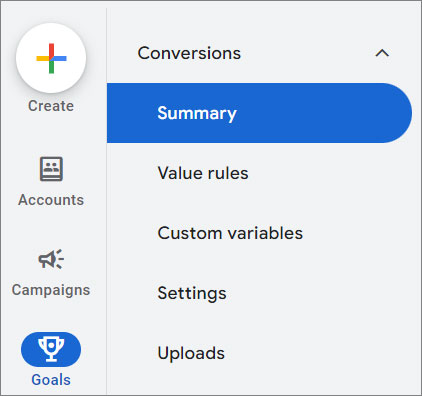
<p><img src="/static/images/ads/ads-goals-nav.jpg" alt="Google Ads Left Nav" style="width: 26%;"></p>

2. Click on **Create conversion action** and select the type (e.g., Website, App).
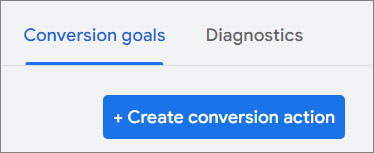
<p><img src="/static/images/ads/ads-conversion-action.jpg" alt="Google Ads Create conversion action" style="width: 26%;"></p>

3. Follow the steps to create a conversion action, and copy the **Conversion ID** and **Conversion Label** that are provided.

4. Go to **Google Tag Manager** and log in.

5. Select the container for the website where you want to add Google Analytics.

6. Click on **"Tags"** in the left sidebar.

7. Then, click the **New** button to create a new tag.
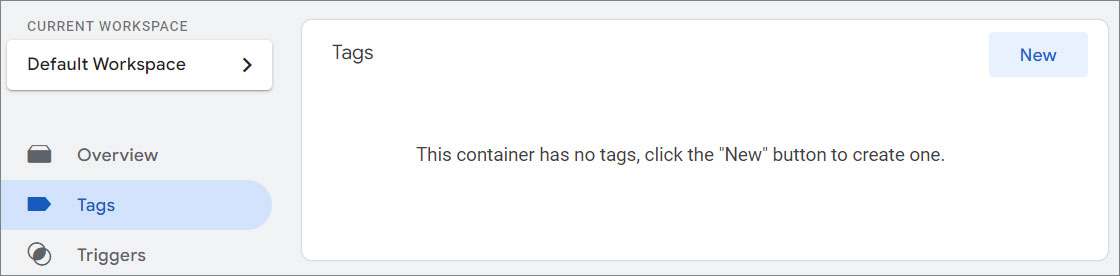
<p><img src="/static/images/tag-manager/gtm-new-tag.jpg" alt="Google Tag Manager New Tag" style="width: 60%;"></p>

8. Name your tag something descriptive, like "Google Ads Conversion Tracking".

9. Choose **Tag Configuration** and select **Google Ads Conversion Tracking**.
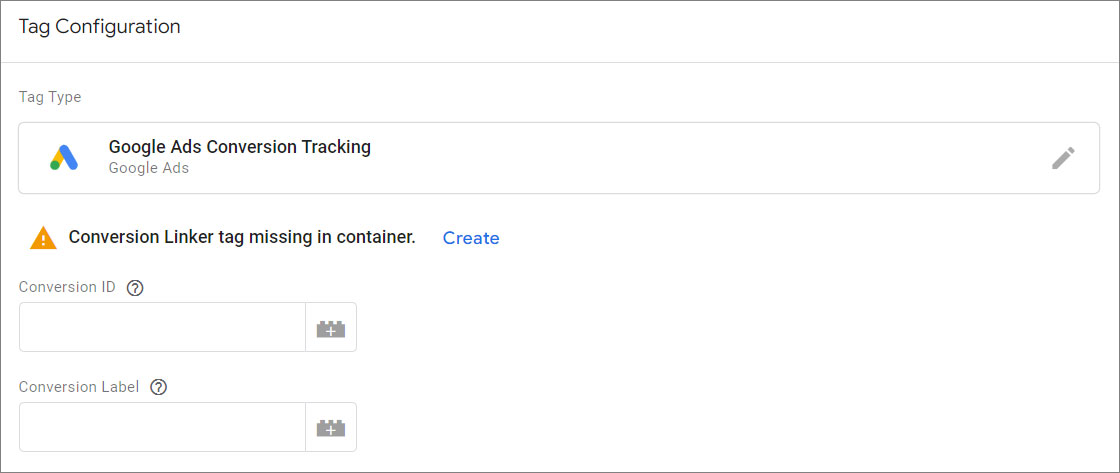
<p><img src="/static/images/tag-manager/gtm-new-tag-ads-conversion.jpg" alt="Google Tag Manager New Tag - Google Ads Conversion Tracking" style="width: 60%;"></p>

10. Enter the Conversion ID and Conversion Label you obtained from Google Ads.

11. Click on **"Triggering"**. Choose a specific trigger like **Thank You** page or any page that represents a completed conversion.
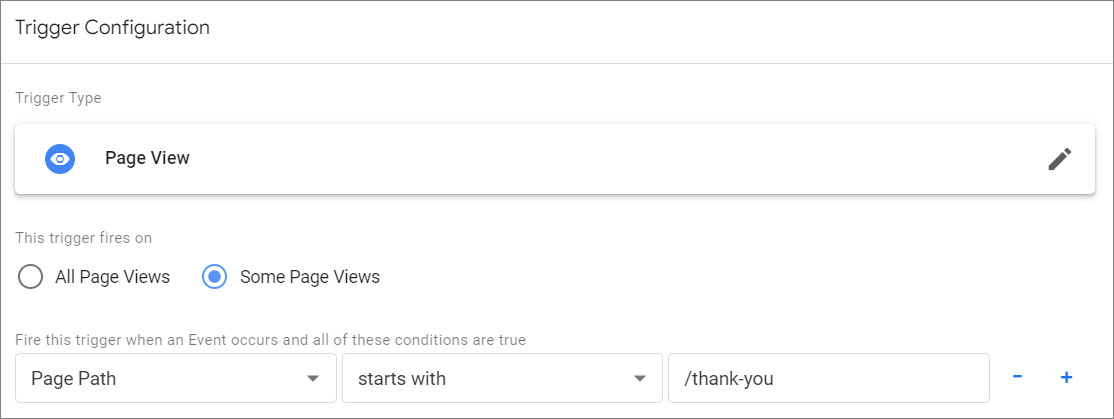
<p><img src="/static/images/tag-manager/gtm-new-tag-page-view.jpg" alt="Google Tag Manager Page View Trigger" style="width: 60%;"></p>

12. Click <span class="text-orange">**Save**</span>.

{% endtab %}
{% tab title="Remarketing" %}
1. Go to **Tools** > **Shared Library** > **Audience Manager**.
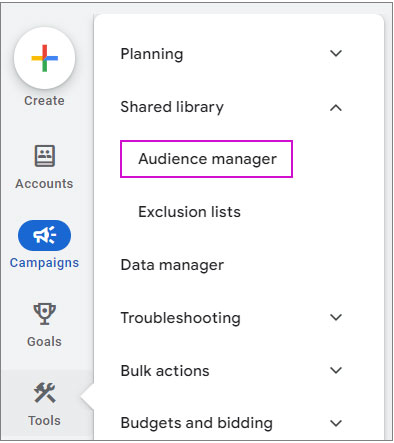
<p><img src="/static/images/ads/ads-tools-nav.jpg" alt="Google Ads Left Nav" style="width: 26%;"></p>

2. Click on **Set Up Audience Source**, find Google Ads Tag, and set up the tag.
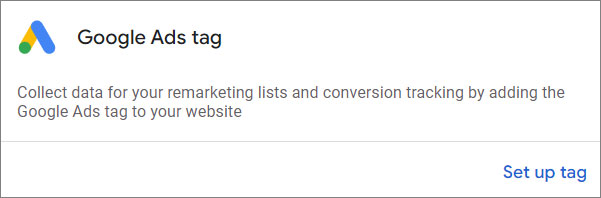
<p><img src="/static/images/ads/ads-audience-source.jpg" alt="Google Ads Set Up Audience Source" style="width: 40%;"></p>

3. Copy the **Conversion ID** for the remarketing tag.

4. Go to **Google Tag Manager** and log in.

5. Select the container for the website where you want to add Google Analytics.

6. Click on **"Tags"** in the left sidebar.

7. Then, click the **New** button to create a new tag.

<p><img src="/static/images/tag-manager/gtm-new-tag.jpg" alt="Google Tag Manager New Tag" style="width: 60%;"></p>

8. Name your tag something descriptive, like **"Google Ads Remarketing"**.

9. Choose **Tag Configuration** and select **Google Ads Remarketing**.
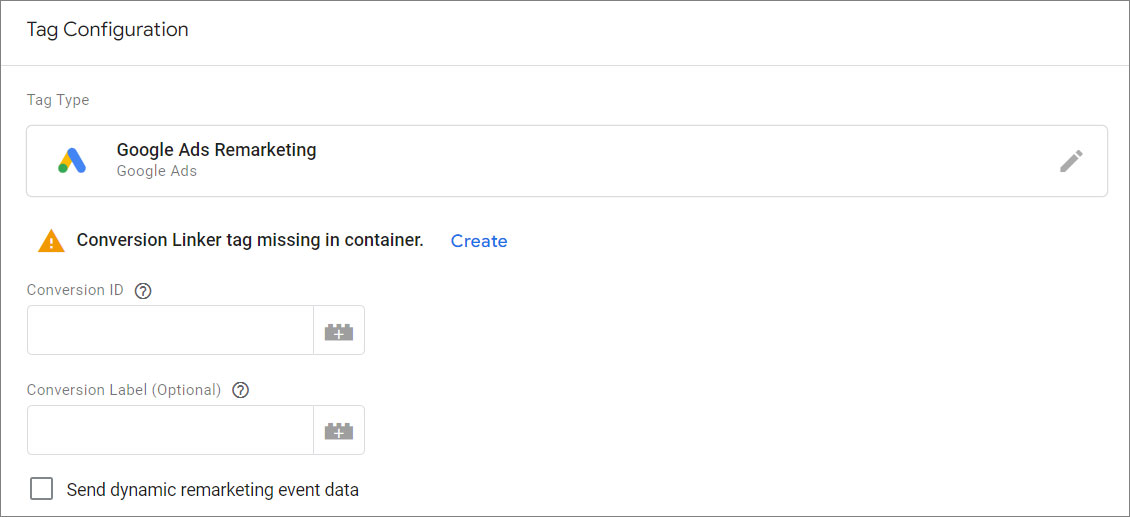
<p><img src="/static/images/tag-manager/gtm-new-tag-ads-remarketing.jpg" alt="Google Tag Manager New Tag - Google Ads Remarketing" style="width: 60%;"></p>

10. Enter the Conversion ID you obtained from Google Ads.

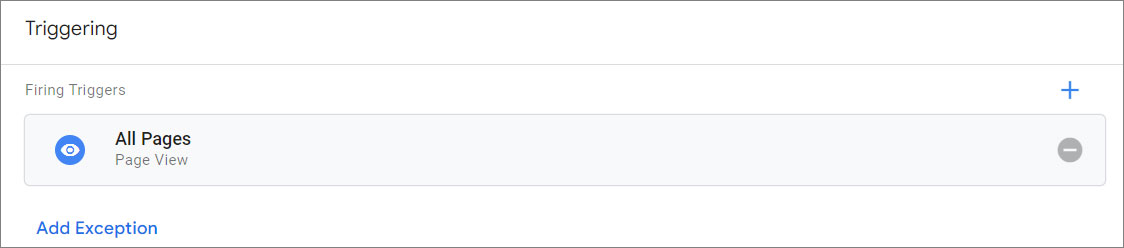
11. Click on **"Triggering"**. Choose **"All Pages"** as the trigger to fire this tag on every page of your website.
<p><img src="/static/images/tag-manager/gtm-new-tag-all-pages.jpg" alt="Google Tag Manager All Pages Trigger" style="width: 60%;"></p>

12. Click <span class="text-orange">**Save**</span>.
{% endtab %}

{% endtabs %}

3. Use the [**"Preview"** mode](https://support.google.com/tagmanager/answer/6107056) in Google Tag Manager to check if the tags are firing correctly, or use the Google Tag Assistant extension in your browser to verify the installation.

<p><img src="/static/images/tag-manager/gtm-preview.jpg" alt="Google Tag Manager Preview" style="width: 32%;"></p>

4. Click <span class="text-orange">**Publish**</span>.

<style>
  /* Headers */
  .header {
    display: flex;
    align-items: center;
    justify-content: space-between;
    padding: 2rem 1.5rem;
    margin-bottom: 2rem;
    background-color: #eef6ff;
  }
  .header .inner {
    display: flex;
    align-items: center;
    justify-content: start;
  }
  .header img {
    width: 80px;
  }
  .header h1 {
    margin-left: 0;
    font-size: 2rem;
    margin-bottom: 0.25rem;
  }
  .header p {
    padding-left: 2rem;
    margin-bottom: 0;
  }
</style>
