#

<div class="header">
  <div class="inner">
    <img src="/static/images/logos/datadog-logo.png" alt="Datadog Logo">
    <div>
      <h1 style="color: #222;">Datadog</h1>
      <p style="padding-left: 2rem; margin-bottom: 0; color: #222;">Monitor cloud-scale apps, databases, containers and more with SaaS analytics.</p>
    </div>
  </div>
  <a href="https://us5.datadoghq.com/signup" rel="noopener noreferrer" target="_blank" class="btn-orange-lg">SIGN UP <span style="padding-left: .5rem; display: inline-flex; align-items: center;"><svg xmlns="http://www.w3.org/2000/svg" viewBox="0 0 16 16" width="20" height="20" fill="#fff"><path d="M3.75 2h3.5a.75.75 0 0 1 0 1.5h-3.5a.25.25 0 0 0-.25.25v8.5c0 .138.112.25.25.25h8.5a.25.25 0 0 0 .25-.25v-3.5a.75.75 0 0 1 1.5 0v3.5A1.75 1.75 0 0 1 12.25 14h-8.5A1.75 1.75 0 0 1 2 12.25v-8.5C2 2.784 2.784 2 3.75 2Zm6.854-1h4.146a.25.25 0 0 1 .25.25v4.146a.25.25 0 0 1-.427.177L13.03 4.03 9.28 7.78a.751.751 0 0 1-1.042-.018.751.751 0 0 1-.018-1.042l3.75-3.75-1.543-1.543A.25.25 0 0 1 10.604 1Z"></path></svg></span></a>
</div>

Monitor your cloud-scale applications – from servers to databases to container clusters and more – with Datadog's powerful SaaS-based tools and data analytics platform.

!!!Note: 
If you already have a Datadog account, [sign in here](https://us5.datadoghq.com/account/login).
!!!

## Prerequisites
  - Preexisting [API Key](#add-api-key).
  - Preexisting [APP Key](#add-app-key).

## <span class="text-teal">Launch Software</span>

Review the launch configuration details and follow the instructions to launch this software.

{% tabs %}

{% tab title="CloudFormation" %}

To continue the installation, click the **Launch** button below and follow the outlined steps.

<a href="https://us-east-1.console.aws.amazon.com/cloudformation/home?region=us-east-1#/stacks/quickcreate?param_CloudSecurityPostureManagement=false&param_DatadogSite=datadoghq.com&param_InstallLambdaLogForwarder=false&stackName=DatadogIntegration&templateURL=https%3A%2F%2Fdatadog-cloudformation-template-quickstart.s3.amazonaws.com%2Faws%2Fv1.1.1%2Fmain_v2.yaml" rel="noopener noreferrer" target="_blank" class="btn-orange-lg mb-2">LAUNCH DATADOG <span><svg xmlns="http://www.w3.org/2000/svg" viewBox="0 0 16 16" width="20" height="20" fill="#fff"><path d="M3.75 2h3.5a.75.75 0 0 1 0 1.5h-3.5a.25.25 0 0 0-.25.25v8.5c0 .138.112.25.25.25h8.5a.25.25 0 0 0 .25-.25v-3.5a.75.75 0 0 1 1.5 0v3.5A1.75 1.75 0 0 1 12.25 14h-8.5A1.75 1.75 0 0 1 2 12.25v-8.5C2 2.784 2.784 2 3.75 2Zm6.854-1h4.146a.25.25 0 0 1 .25.25v4.146a.25.25 0 0 1-.427.177L13.03 4.03 9.28 7.78a.751.751 0 0 1-1.042-.018.751.751 0 0 1-.018-1.042l3.75-3.75-1.543-1.543A.25.25 0 0 1 10.604 1Z"></path></svg></span></a>

!!!NOTE:
If your AWS region is different from `us-east-1`, make sure to select your specific region from the top menu.
!!!

### Create Stack

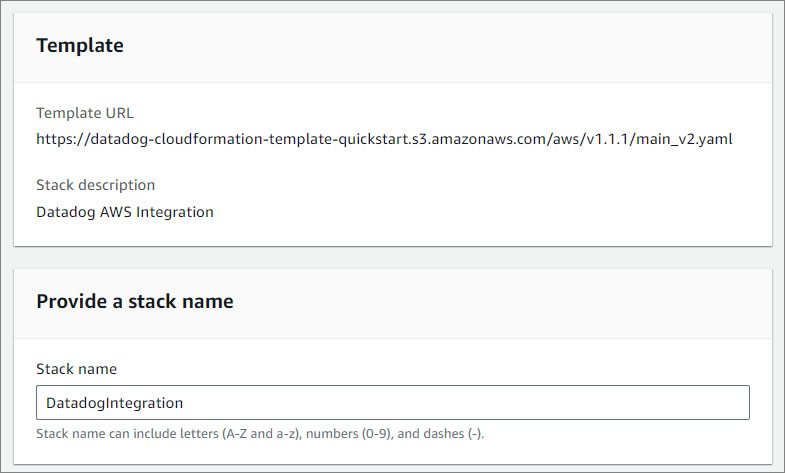
1. Provide a stack name.

<p><img src="/static/images/datadog/datadog-stack-name.jpg" alt="Datadog stack name" style="width: 45%;"></p>

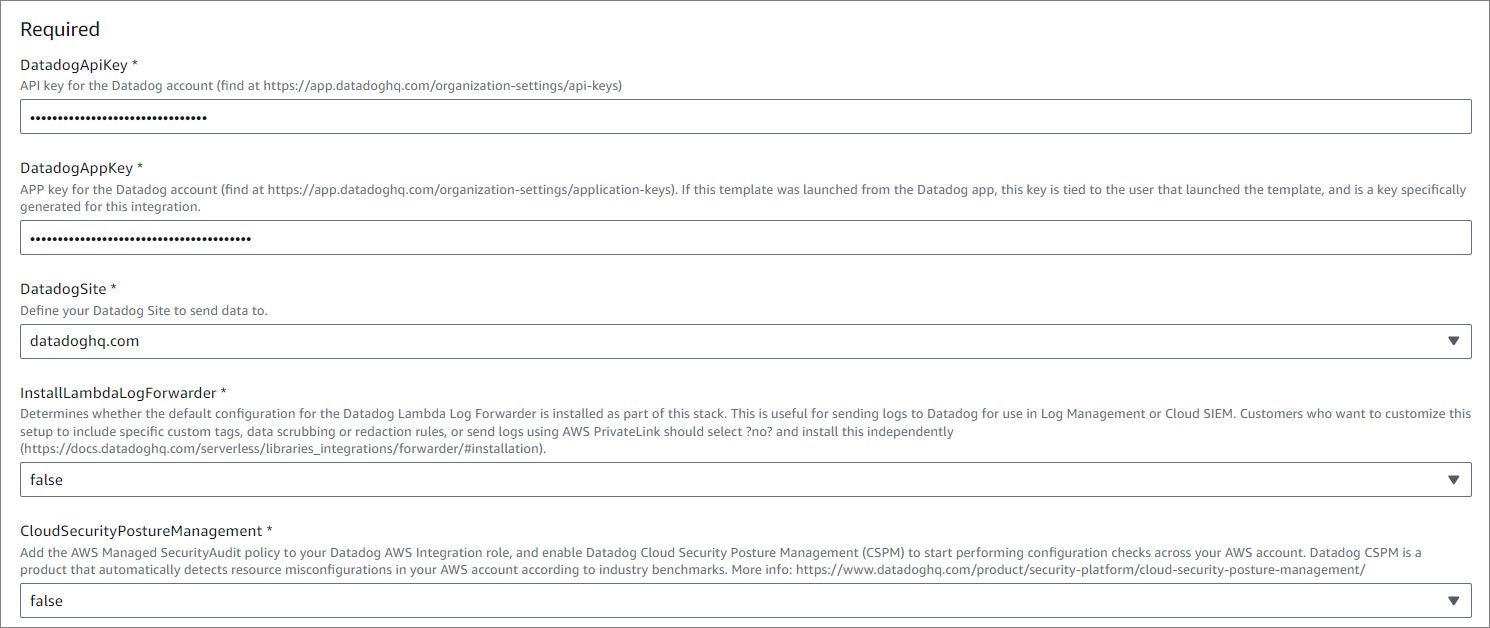
2. Specify the parameters in the Required section.

<p><img src="/static/images/datadog/datadog-params-required.jpg" alt="Datadog Required section" style="width: 80%;"></p>

Name   | Description
---    | ---
DatadogApiKey | [API key](#add-api-key) for the Datadog account.
DatadogAppKey  | [APP key](#add-app-key) for the Datadog account. If this template was launched from the Datadog app, this key is tied to the user that launched the template, and is a key specifically generated for this integration.
DatadogSite | Define your Datadog Site to send data to.
InstallLambdaLogForwarder | Determines whether the default configuration for the Datadog Lambda Log Forwarder is installed as part of this stack. For more information, [click here](https://docs.datadoghq.com/serverless/libraries_integrations/forwarder/#installation).
CloudSecurityPostureManagement | Add the AWS Managed SecurityAudit policy to your Datadog AWS Integration role, and enable Datadog Cloud Security Posture Management (CSPM) to start performing configuration checks across your AWS account. [Click here](https://www.datadoghq.com/product/security-platform/cloud-security-posture-management/) for more information.

3. Specify the parameters in the Advanced section.

<p><img src="/static/images/datadog/datadog-params-advanced.jpg" alt="Datadog Advanced section" style="width: 62%;"></p>

Name   | Description
---    | ---
IAMRoleName | Customize the name of IAM role for Datadog AWS integration.
DisableMetricCollection | Disable metric collection.

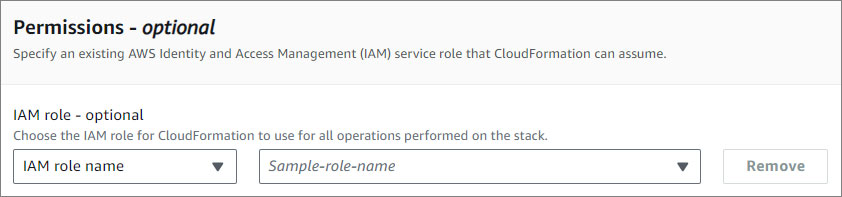
4. Specify the permission. **This step is optional**.

<p><img src="/static/images/datadog/datadog-params-permissions.jpg" alt="Datadog permissions section" style="width: 62%;"></p>

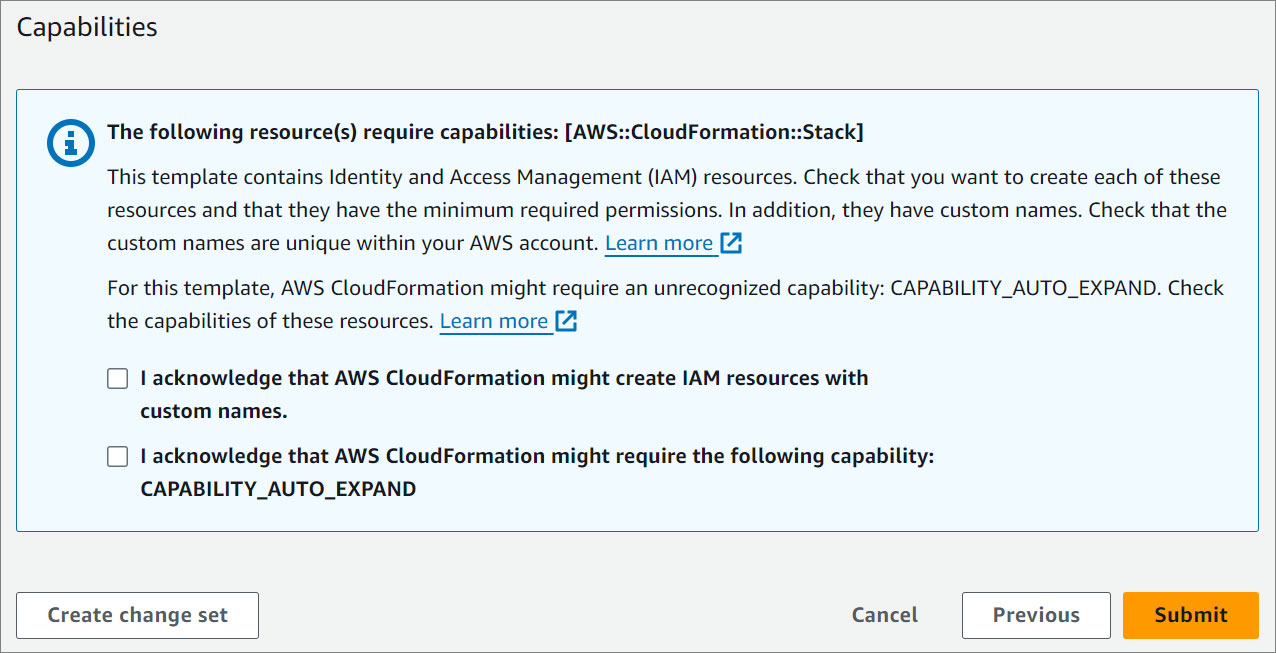
5. Acknowledge the AWS CloudFormation terms.

<p><img src="/static/images/quickstart/stack-capabilities.jpg" alt="Datadog capabilities" style="width: 62%;"></p>

6. Click <span class="text-orange">**Create Stack**</span>.

{% endtab %}

{% endtabs %}

## Add API Key

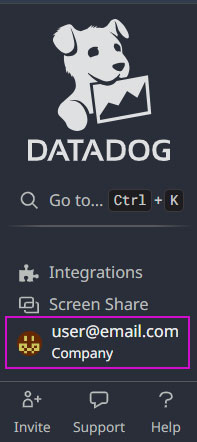
1. Navigate to your user in the left nav or go to https://app.datadoghq.com/organization-settings/api-keys.

<p><img src="/static/images/datadog/datadog-nav.jpg" alt="Datadog nav" style="width: 13%;"></p>

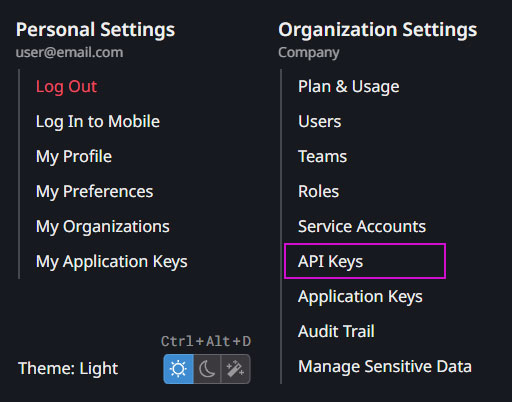
2. Under **Organization settings**, click the **API Keys** tab.
<p><img src="/static/images/datadog/datadog-api-settings.jpg" alt="Datadog Organization settings" style="width: 40%;"></p>

2. Click the **New Key** button.
<p><img src="/static/images/datadog/datadog-new-key.jpg" alt="Datadog New Key" style="width: 40%;"></p>

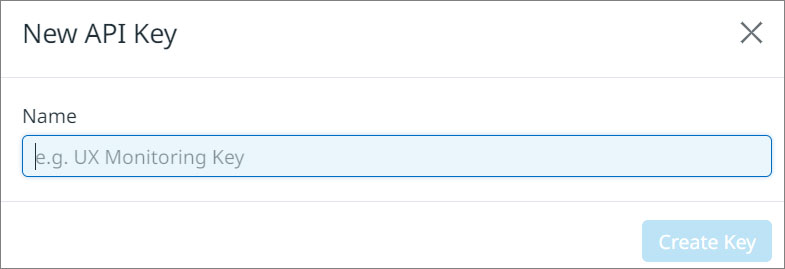
3. Enter a **name** for your key.

<p><img src="/static/images/datadog/datadog-new-key-name.jpg" alt="Datadog New Key Name" style="width: 40%;"></p>

4. Click <span class="text-orange">**Create Key**</orange>.

## Add APP Key

1. Navigate to your user in the left nav or go to https://app.datadoghq.com/organization-settings/application-keys. 

<p><img src="/static/images/datadog/datadog-nav.jpg" alt="Datadog nav" style="width: 13%;"></p>

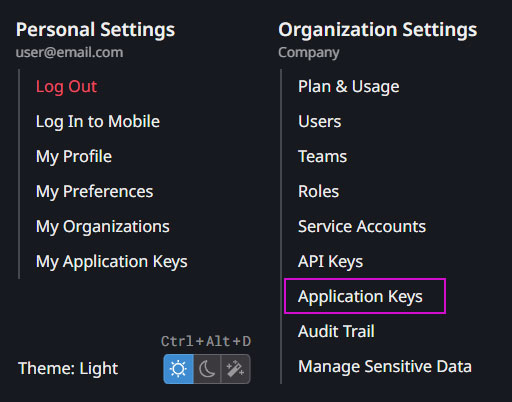
2. Under **Organization settings**, click the **Application Keys** tab.

<p><img src="/static/images/datadog/datadog-app-settings.jpg" alt="Datadog Organization settings" style="width: 40%;"></p>

2. Click the **New Key** button.

<p><img src="/static/images/datadog/datadog-new-key-app.jpg" alt="Datadog New Key" style="width: 40%;"></p>

3. Enter a **name** for your key.

<p><img src="/static/images/datadog/datadog-new-key-name.jpg" alt="Datadog New Key Name" style="width: 40%;"></p>

4. Click <span class="text-orange">**Create Key**</orange>.

<style>
  /* Headers */
  .header {
    display: flex;
    align-items: center;
    justify-content: space-between;
    padding: 2rem 1.5rem;
    margin-bottom: 2rem;
    background-color: #eef6ff;
  }
  .header .inner {
    display: flex;
    align-items: center;
    justify-content: start;
  }
  .header img {
    width: 80px;
  }
  .header h1 {
    margin-left: 0;
    font-size: 2rem;
    margin-bottom: 0.25rem;
  }
  .header p {
    padding-left: 2rem;
    margin-bottom: 0;
  }
</style>