# Item Overview
Manage your items. Define the version, category, logo, and more.
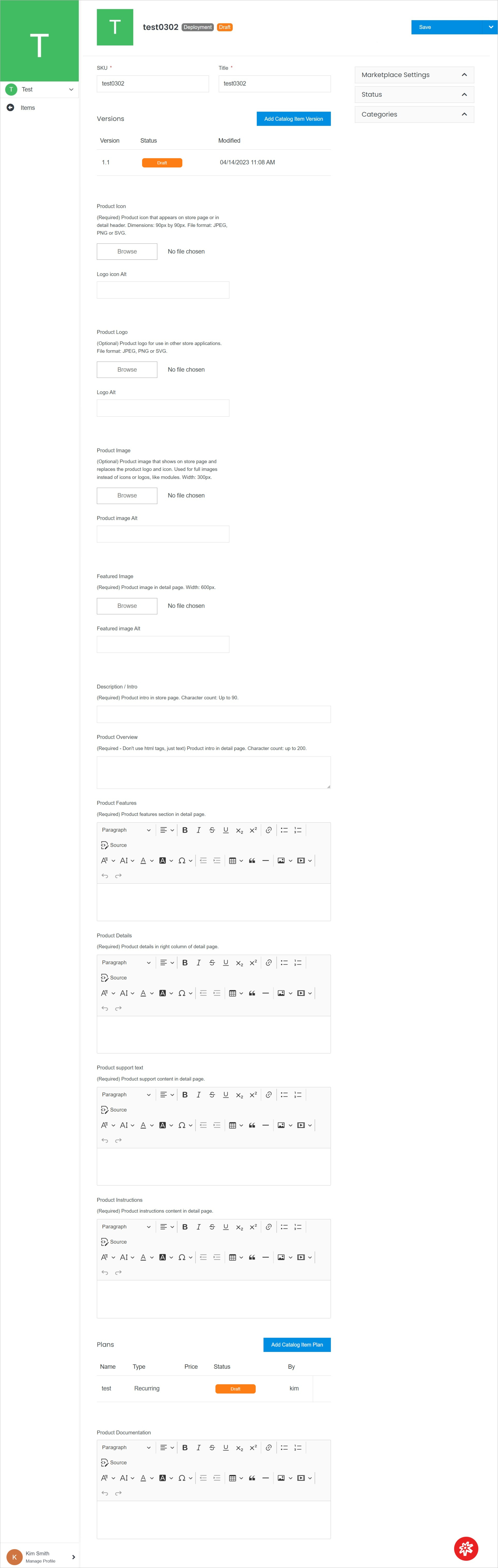 **Name** | **Description**
:--- | ---
Item Management | Manage item advanced features.
Marketplace Settings | Manage item settings.
Status | Manage item status.
Categories | Manage item category.
Add Catalog Item Version | Add a new catalog item version.
Add Catalog Item Plan | Add a new catalog item plan.
Copy Item | Copy your item
Transfer Item | Transfer your item to another catalog.
Delete | Delete your item.
Permissions | Manage your permissions.
!!!Note:
Item Overview page content depends on the fulfillment type. In the case of **Service**, Buildspec formulas can be managed directly, not via item versions. Below is an example of service fulfillment type.
!!!
**Name** | **Description**
:--- | ---
Buildspec | Manage Buildspec formulas.
## Item Management
Manage your item features.
**Name** | **Description**
:--- | ---
Item Management | Manage item advanced features.
Marketplace Settings | Manage item settings.
Status | Manage item status.
Categories | Manage item category.
Add Catalog Item Version | Add a new catalog item version.
Add Catalog Item Plan | Add a new catalog item plan.
Copy Item | Copy your item
Transfer Item | Transfer your item to another catalog.
Delete | Delete your item.
Permissions | Manage your permissions.
!!!Note:
Item Overview page content depends on the fulfillment type. In the case of **Service**, Buildspec formulas can be managed directly, not via item versions. Below is an example of service fulfillment type.
!!!
**Name** | **Description**
:--- | ---
Buildspec | Manage Buildspec formulas.
## Item Management
Manage your item features.
 **Name** | **Description**
:--- | ---
SKU | Enter the SKU.
Title | Enter the item title.
Publisher | Enter the Publisher.
Publisher/App URL| Enter the Publisher/App URL.
Product Icon | Place the product icon by using the button **Browse**. It appears on the store page or in the detail header.
**Name** | **Description**
:--- | ---
SKU | Enter the SKU.
Title | Enter the item title.
Publisher | Enter the Publisher.
Publisher/App URL| Enter the Publisher/App URL.
Product Icon | Place the product icon by using the button **Browse**. It appears on the store page or in the detail header. **Dimensions: 90px by 90px. File format: JPEG, PNG, or SVG.**
Logo Icon Alt | Enter the logo icon alt.
Product Logo | Place the product logo by using the button **Browse**. It is for use in other store applications.
**File format: JPEG, PNG, or SVG.**
Logo Alt | Enter the logo alt.
Product Image | Place the product image. It shows on the store page and replaces the product logo and icon.
**Used for full images instead of icons or logos, like modules. Width: 300px.**
Product Image Alt | Enter the product image alt.
Featured Image | Place featured image. It shows in detail page.
**Width: 600px.**
Featured Image Alt | Enter the featured image alt.
Description / Intro | Enter the description/intro. It shows on the store page.
**Character count: Up to 90.**
Product Overview | Enter the product overview. It shows in detail page.
**(Required - Don't use html tags, just text). Character count: up to 200.**
Product Features | Enter the product features. It shows in detail page.
Product Details | Enter the product details. It shows in the right column of the detail page.
Product support text | Enter the product support text. It shows in detail page.
Product Instructions | Enter the product instructions. It shows in detail page.
Product Documentation | Enter the product documentation.
!!!Note:
Item Management in this manual is based on the fulfillment type that is not **Service**.
!!!
## Marketplace Settings
Manage the item settings.
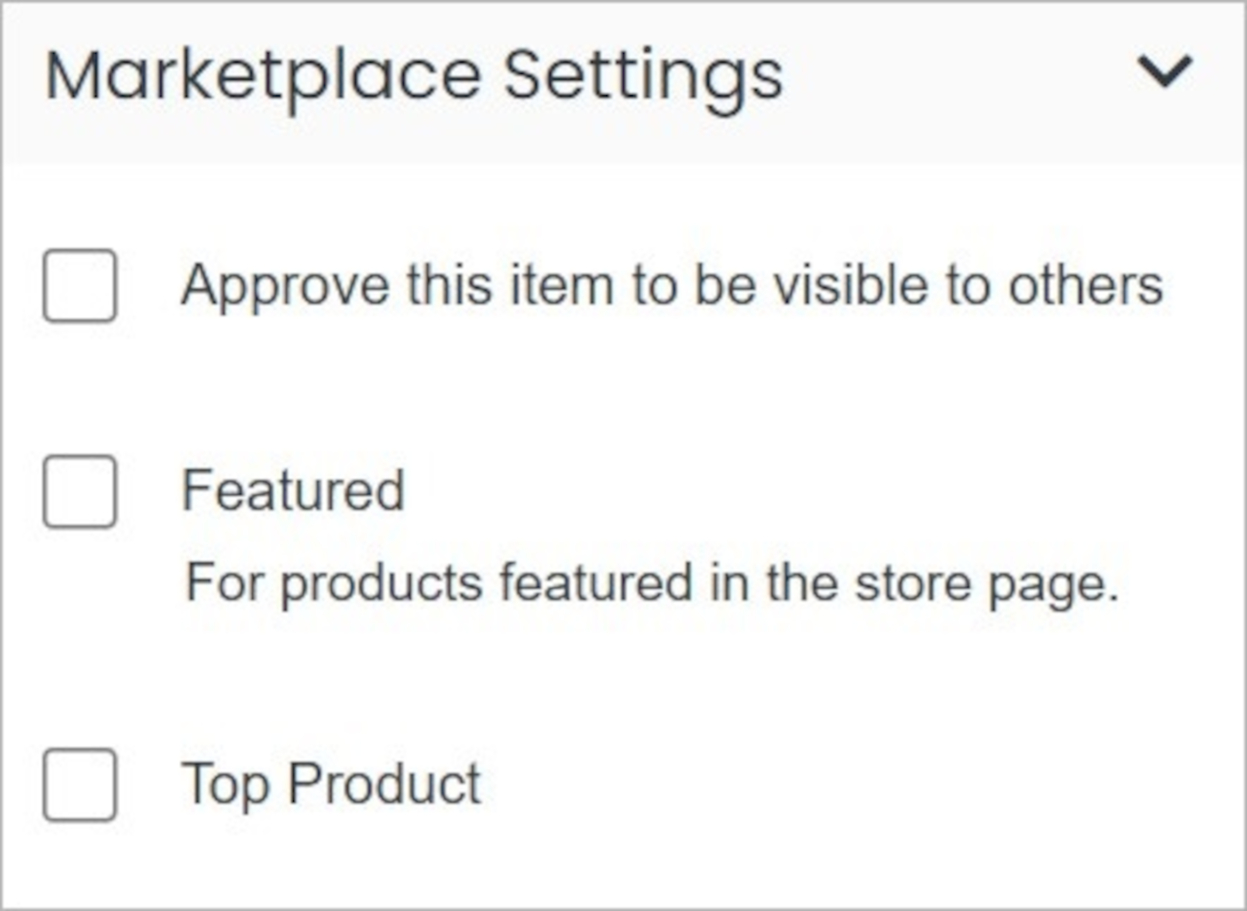 **Name** | **Description**
:--- | ---
Approve this item to be visible to others | Martk this option to approve this item to be visible to others.
Featured | Mark this option to have your item featured.
Top Product | Mark this option to have your item top product.
## Status
Manage the item status.
**Name** | **Description**
:--- | ---
Approve this item to be visible to others | Martk this option to approve this item to be visible to others.
Featured | Mark this option to have your item featured.
Top Product | Mark this option to have your item top product.
## Status
Manage the item status.
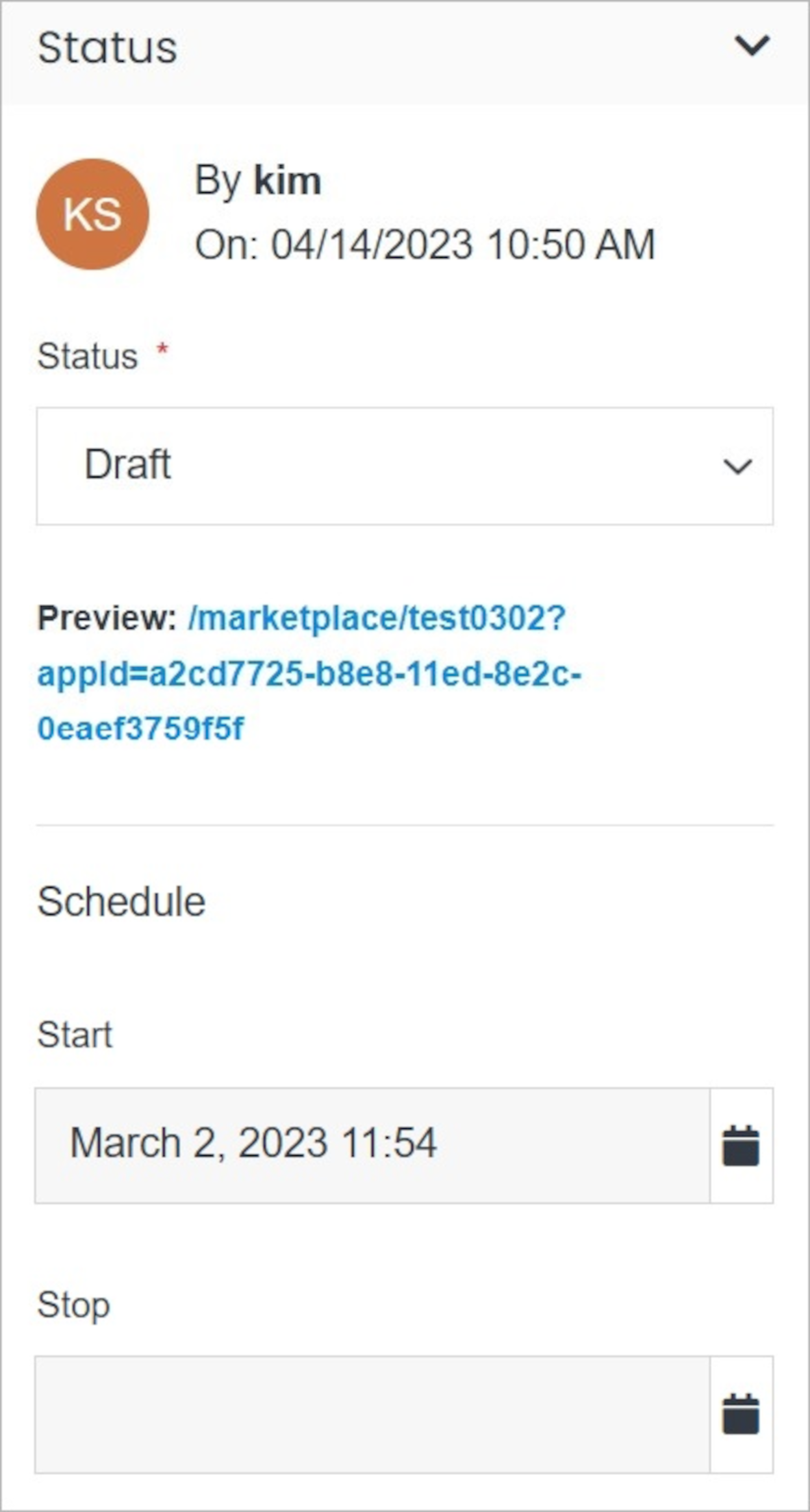 **Name** | **Description**
:--- | ---
Choose Status | Choose the item status.
Choose Start Date | Choose the start date.
Choose End Date | Choose the end date.
!!!Note:
You can choose from three status types:
- **Publish**
- **Preview**
- **Draft**
!!!
## Categories
Define the item category.
**Name** | **Description**
:--- | ---
Choose Status | Choose the item status.
Choose Start Date | Choose the start date.
Choose End Date | Choose the end date.
!!!Note:
You can choose from three status types:
- **Publish**
- **Preview**
- **Draft**
!!!
## Categories
Define the item category.
 **Name** | **Description**
:--- | ---
Utilities | Mark this option to define the item as utilities.
Video | Mark this option to define the item as a video.
## Confirm
Once you have completed all the fields, click **Save** to apply your changes.
**Name** | **Description**
:--- | ---
Utilities | Mark this option to define the item as utilities.
Video | Mark this option to define the item as a video.
## Confirm
Once you have completed all the fields, click **Save** to apply your changes.